Your menu, orders and kitchen. All in one place.मेन्यू, ऑर्डर और किचन, सब एक ही जगह।
Chapter 1 · अध्याय 1
Welcome to MenuMinuteMenuMinute में आपका स्वागत है
- Know what MenuMinute does for youजानिए MenuMinute आपके लिए क्या करता है
- Find your way around the left menuबाईं तरफ़ के मेन्यू से सही पेज ढूँढिए
- Check how your restaurant is doing todayदेखिए आज आपका रेस्टोरेंट कैसा चल रहा है
STEP 1 · चरण 1
Meet your Dashboardअपने Dashboard से मिलिए
The Dashboard is the first screen you see after you sign in. It shows your restaurant at a glance.साइन इन करने के बाद सबसे पहले यही स्क्रीन दिखती है। इसमें आपका रेस्टोरेंट एक नज़र में दिखता है।
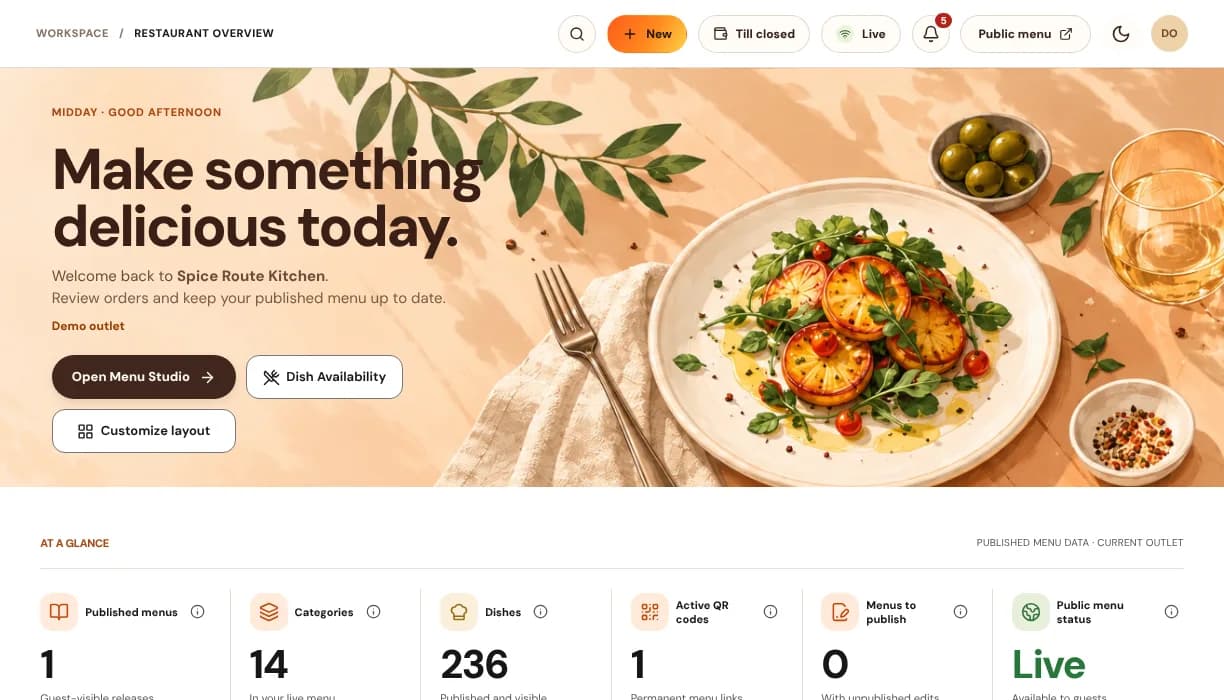
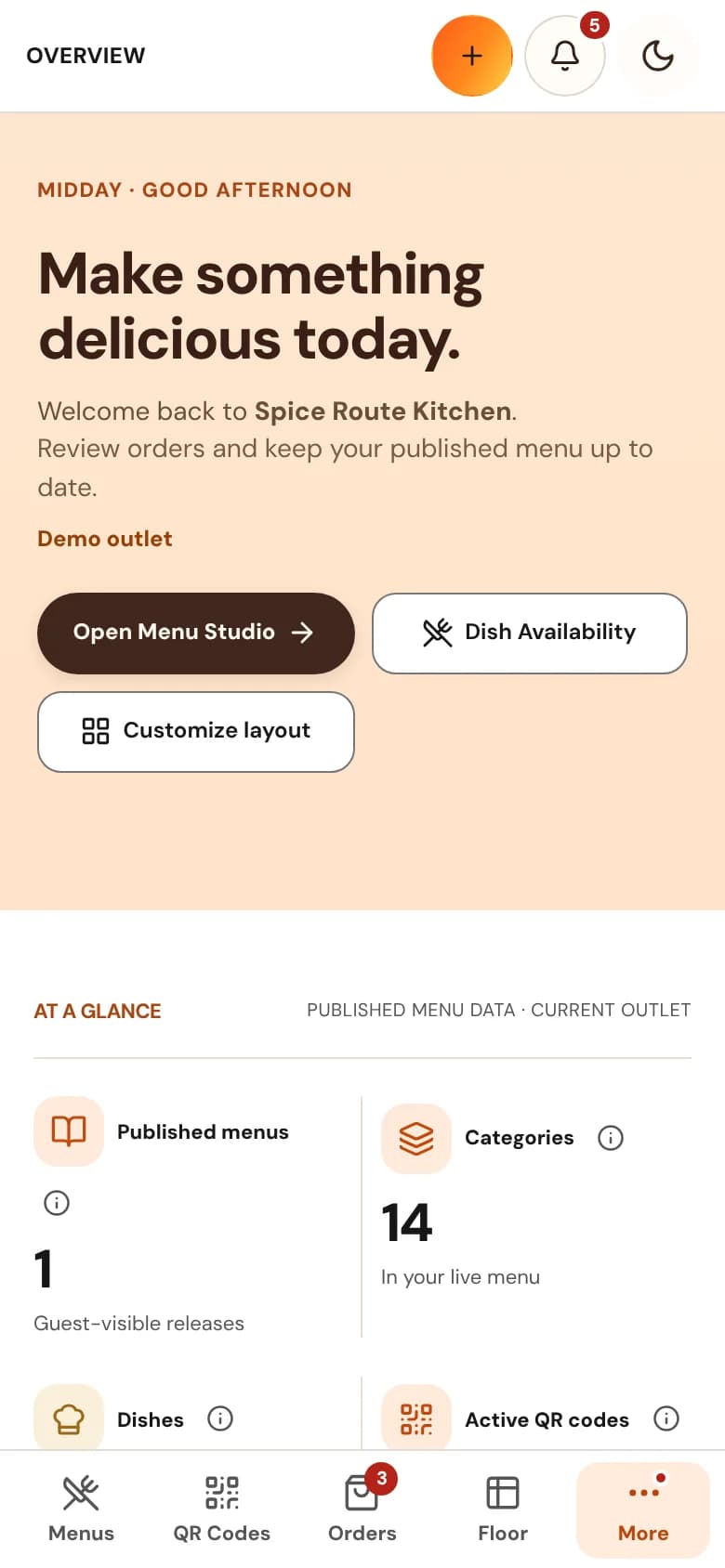
- 1Click Open Menu Studio when you want to change your menu.मेन्यू में बदलाव करना हो तो Open Menu Studio पर क्लिक कीजिए।
- 2Click Dish Availability to mark a dish as sold out.कोई डिश ख़त्म हो गई हो तो Dish Availability पर क्लिक करके उसे sold out मार्क कीजिए।
- 3Click Public menu to see the menu exactly as your guests see it.Public menu पर क्लिक कीजिए। आपका मेन्यू ठीक वैसा दिखेगा जैसा ग्राहक को दिखता है।
STEP 2 · चरण 2
Use the left menuबाईं तरफ़ का मेन्यू इस्तेमाल कीजिए
Everything you need is in the menu on the left. On a phone, use the bar at the bottom and tap More for the rest.ज़रूरत की हर चीज़ बाईं तरफ़ के मेन्यू में है। फ़ोन में नीचे की पट्टी इस्तेमाल कीजिए, और बाकी पेज के लिए More पर टैप कीजिए।
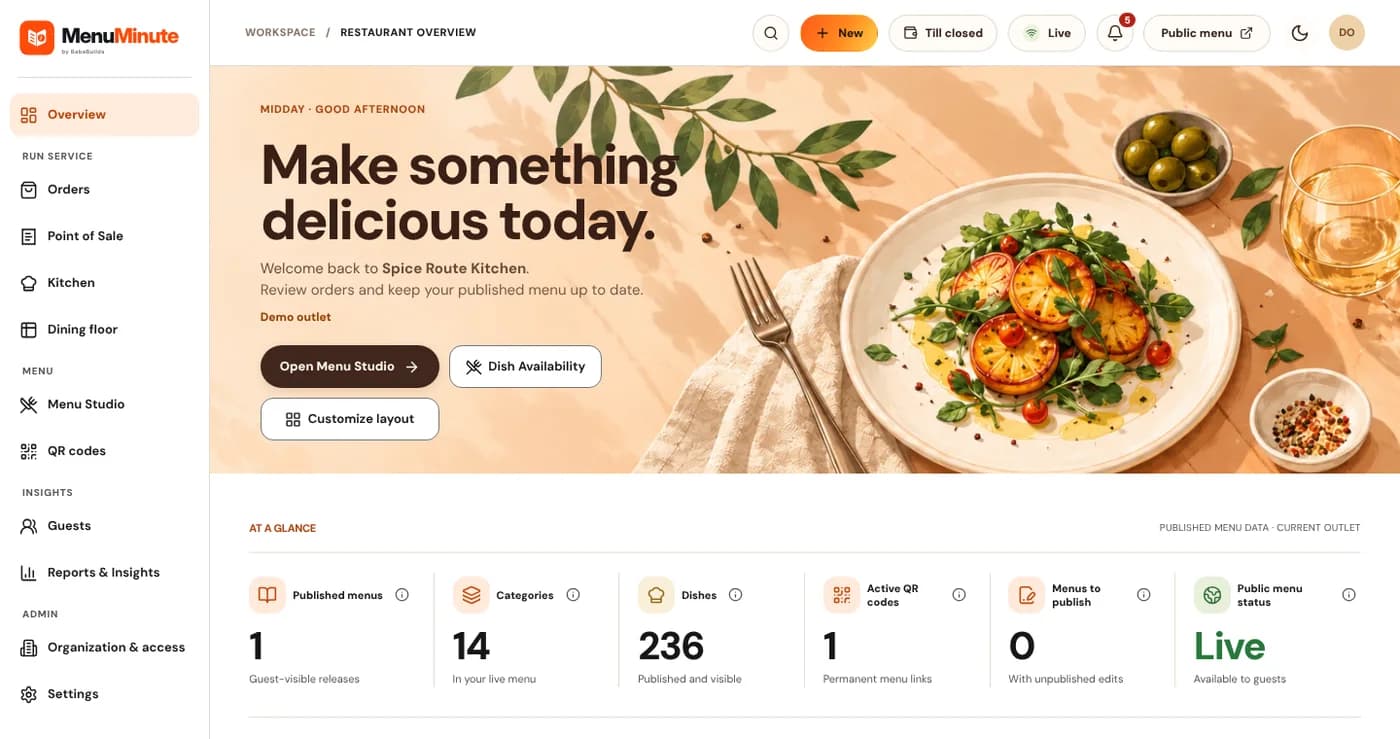
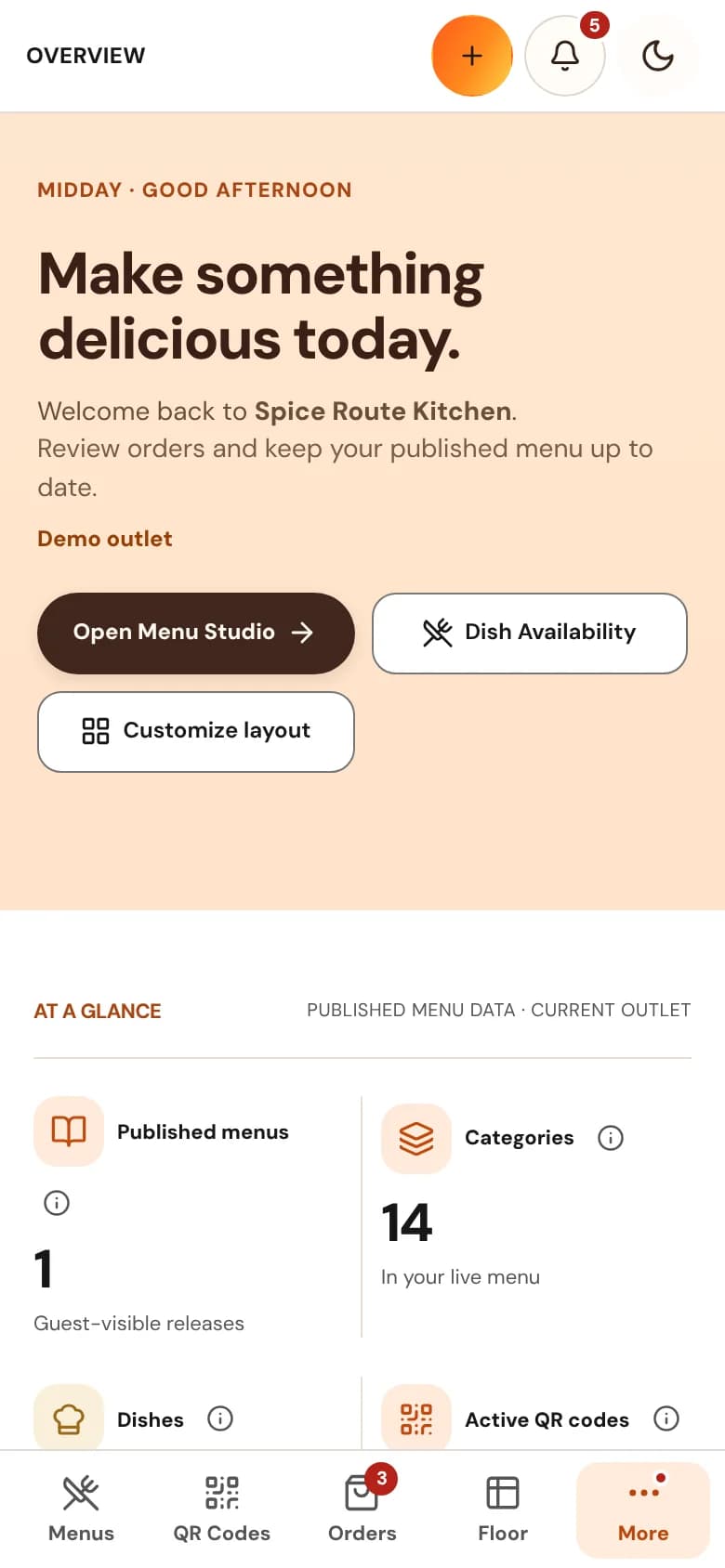
- 1Orders: see and accept new orders.Orders: नए ऑर्डर देखिए और स्वीकार कीजिए।
- 2Kitchen: the screen your cooks use.Kitchen: यह स्क्रीन आपके कुक इस्तेमाल करते हैं।
- 3Menu Studio: add and change dishes.Menu Studio: डिश जोड़िए और बदलिए।
- 4QR codes: get the QR code for your tables.QR codes: टेबल के लिए QR कोड यहाँ से लीजिए।
- 5Reports & Insights: see how sales are going.Reports & Insights: देखिए बिक्री कैसी चल रही है।
STEP 3 · चरण 3
Check today at a glanceआज की स्थिति एक नज़र में देखिए
Before you open for the day, look at the At a glance tiles on your Dashboard.दिन शुरू करने से पहले अपने Dashboard पर At a glance वाले डिब्बे देख लीजिए।
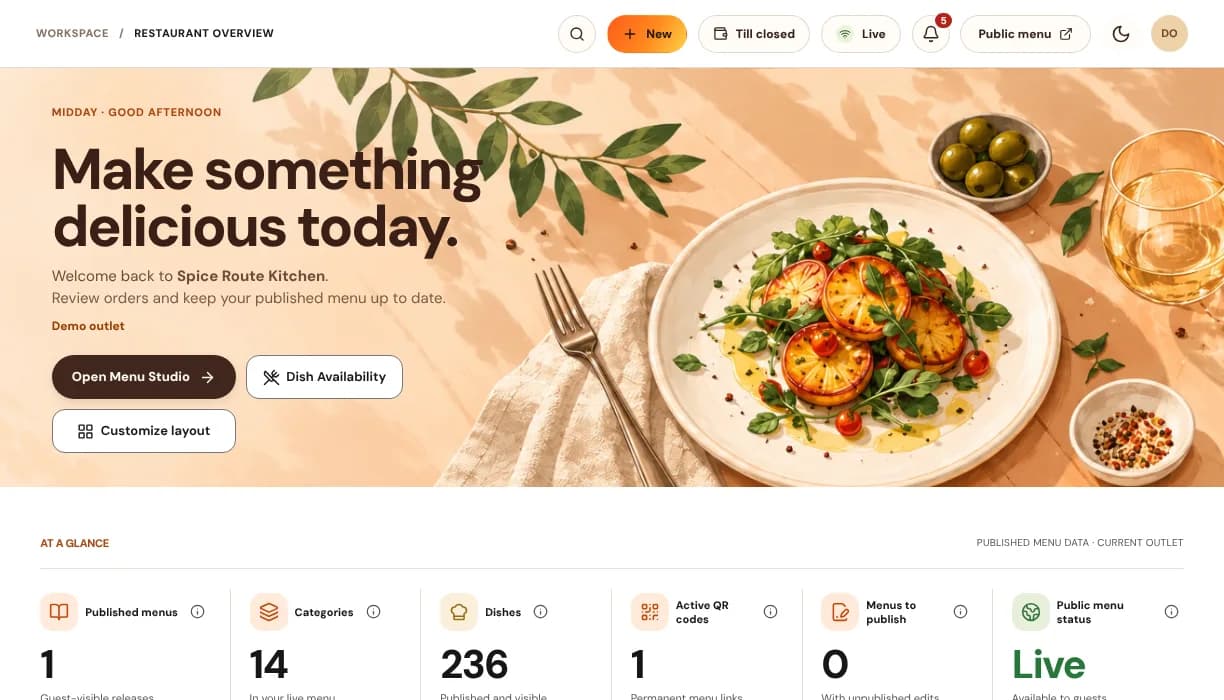
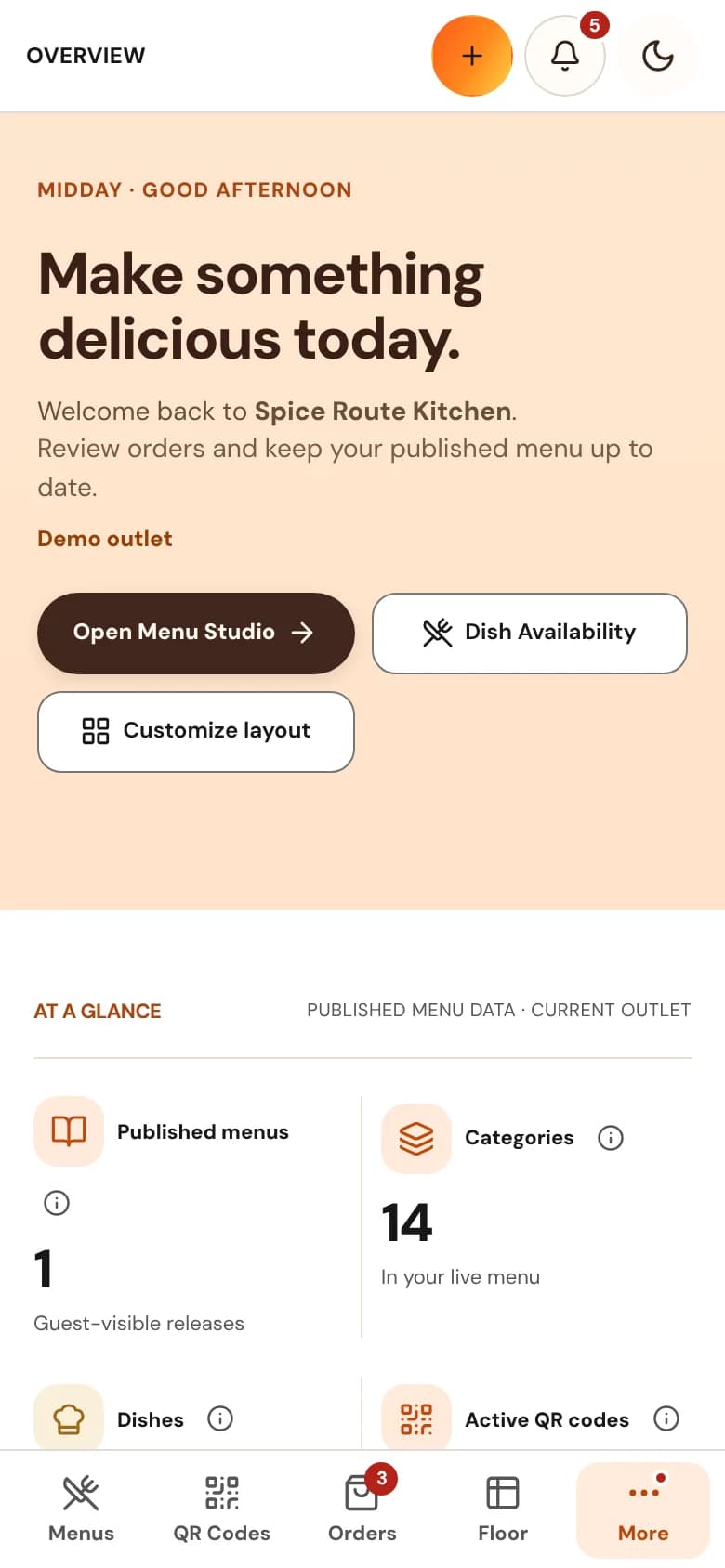
- 1Public menu status should say Live. That means guests can see your menu.Public menu status में Live लिखा होना चाहिए। इसका मतलब है कि ग्राहक आपका मेन्यू देख सकते हैं।
- 2Active QR codes shows how many QR codes are working.Active QR codes बताता है कि कितने QR कोड चालू हैं।
Before you move onआगे बढ़ने से पहले
- I know what the Dashboard showsमुझे पता है Dashboard में क्या दिखता है
- I can find Orders, Kitchen and Menu Studioमुझे Orders, Kitchen और Menu Studio मिल जाते हैं
- I know Public menu status must say Liveमुझे पता है Public menu status में Live होना चाहिए
If something looks wrongकुछ गड़बड़ लगे तो
- I can't find a page.मुझे कोई पेज नहीं मिल रहा।
- Look in the left menu. On a phone, tap More. Or press Ctrl + K on a computer and type the page name.बाईं तरफ़ का मेन्यू देखिए। फ़ोन में More पर टैप कीजिए। कंप्यूटर में Ctrl + K दबाकर पेज का नाम लिख दीजिए।
- A page is missing for my staff.मेरे स्टाफ़ को कोई पेज नहीं दिख रहा।
- Pages depend on the person's role. The owner can change roles in Organization & access (Chapter 10).पेज व्यक्ति के रोल पर निर्भर करते हैं। मालिक Organization & access में रोल बदल सकते हैं (चैप्टर 10)।