Get started
Dashboard overview
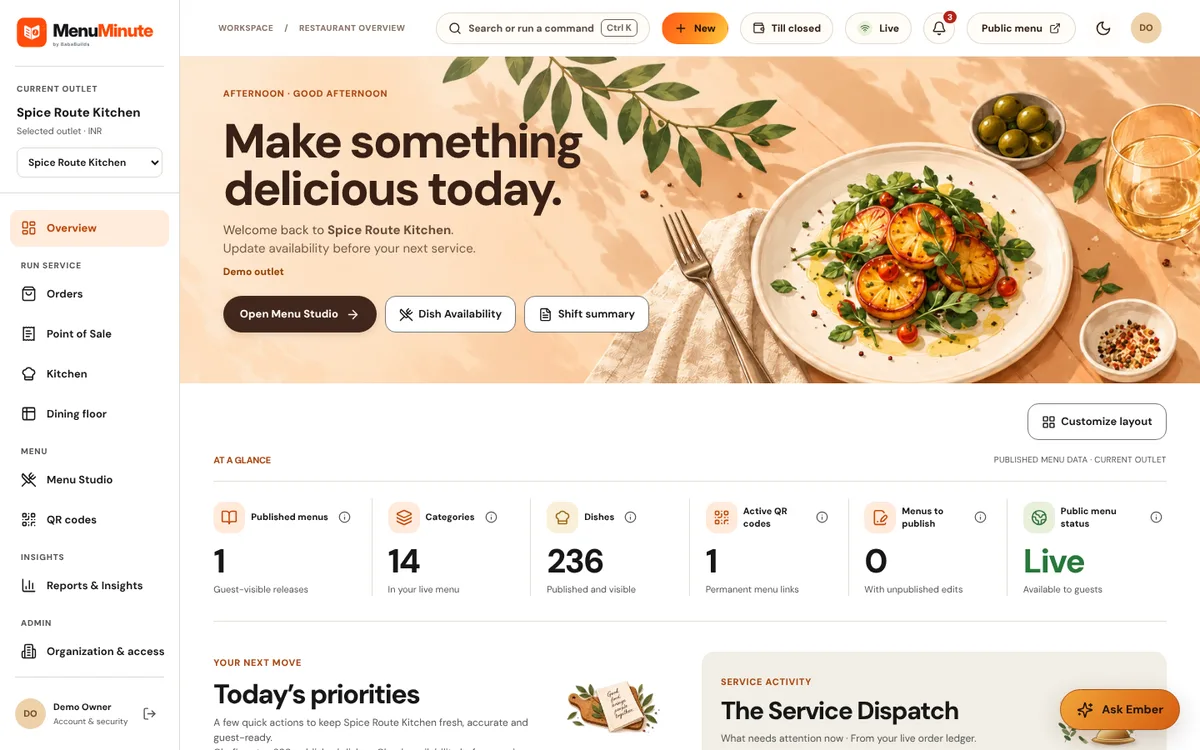
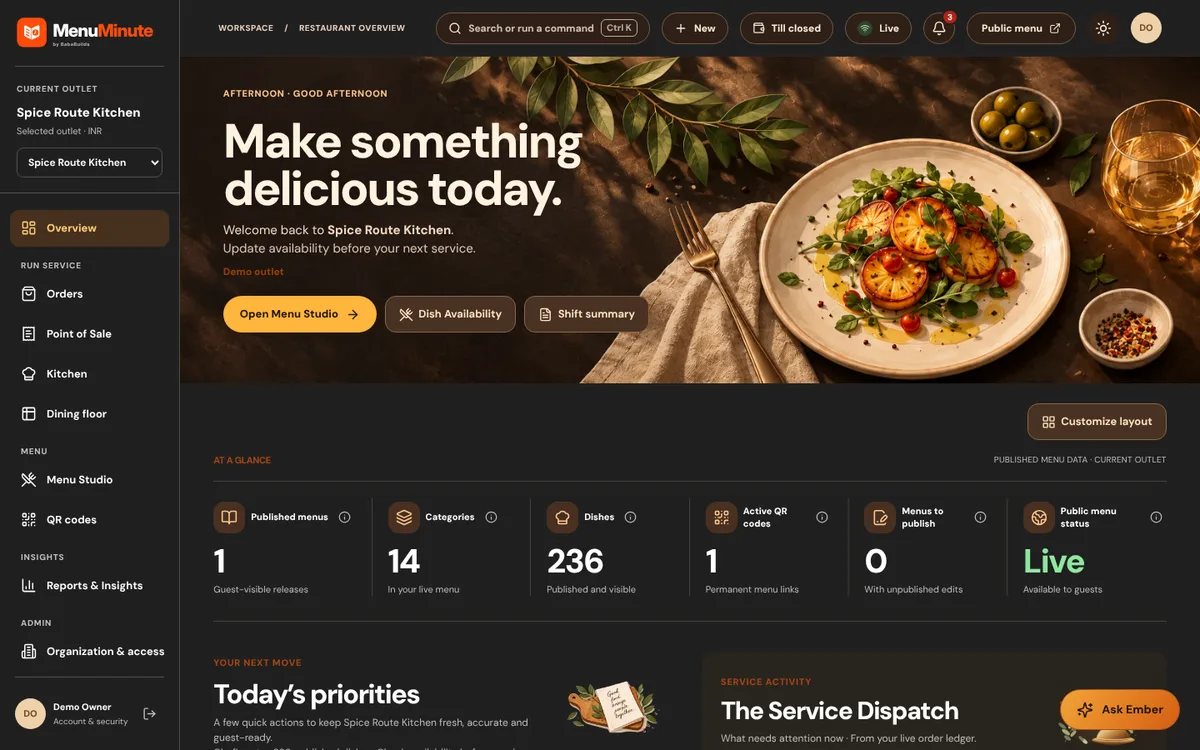
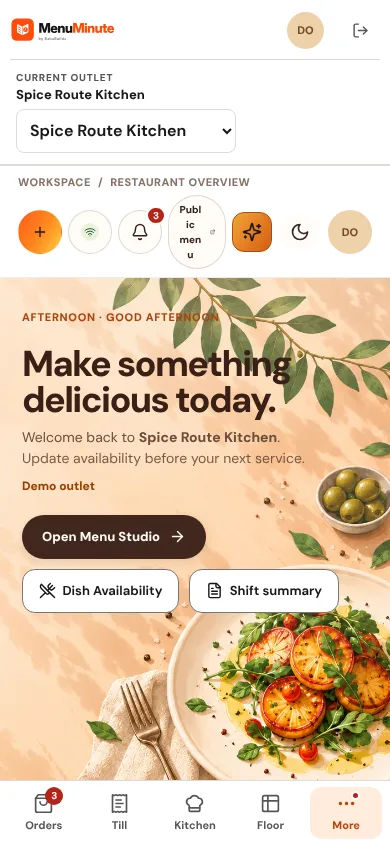
Your outlet at a glance: live menu status, today's priorities and quick actions.
What it does
- The overview shows how many menus, categories and dishes are live, how many QR codes are active and whether the public menu is available to guests.
- Quick actions take you to Menu Studio and dish availability, and a command bar (Ctrl K) jumps anywhere in the workspace.
- A service activity panel summarises what needs attention now from your live order ledger.
How to use it
- 1Check the Public menu status tile reads Live before a service.
- 2Use Open Menu Studio to change dishes or Dish Availability to mark something sold out.
- 3Press Ctrl K to search for a page or action.
Good to know
- Use Customize layout to hide panels you do not need and re-order the rest.
- The outlet switcher in the left column changes which outlet every page shows.
Try it yourself
Enter the demo first, then open this screen. No sign-up needed.