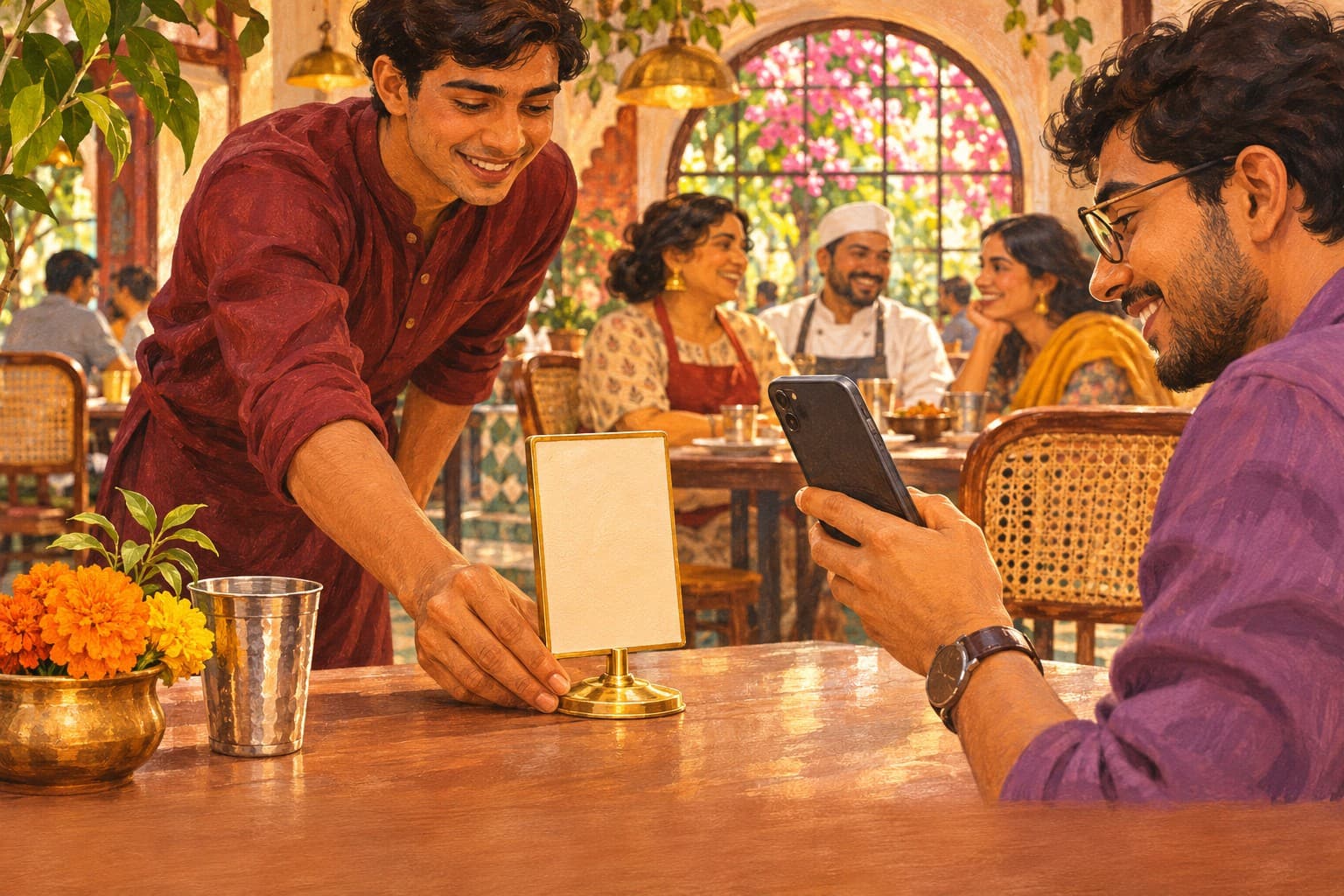
Chapter 4 · अध्याय 4
QR codes for your tablesटेबल के लिए QR कोड
- Find your QR codeअपना QR कोड ढूँढिए
- Download or share itउसे डाउनलोड या शेयर कीजिए
- Design and print table cardsटेबल कार्ड डिज़ाइन और प्रिंट कीजिए
- Test it with your own phoneअपने फ़ोन से जाँच कीजिए
STEP 1 · चरण 1
Open QR codesQR codes खोलिए
Your QR code never changes. You can change dishes and prices any time, and the same printed code keeps working.आपका QR कोड कभी नहीं बदलता। डिश और कीमतें जब चाहें बदलिए, वही छपा हुआ कोड चलता रहता है।
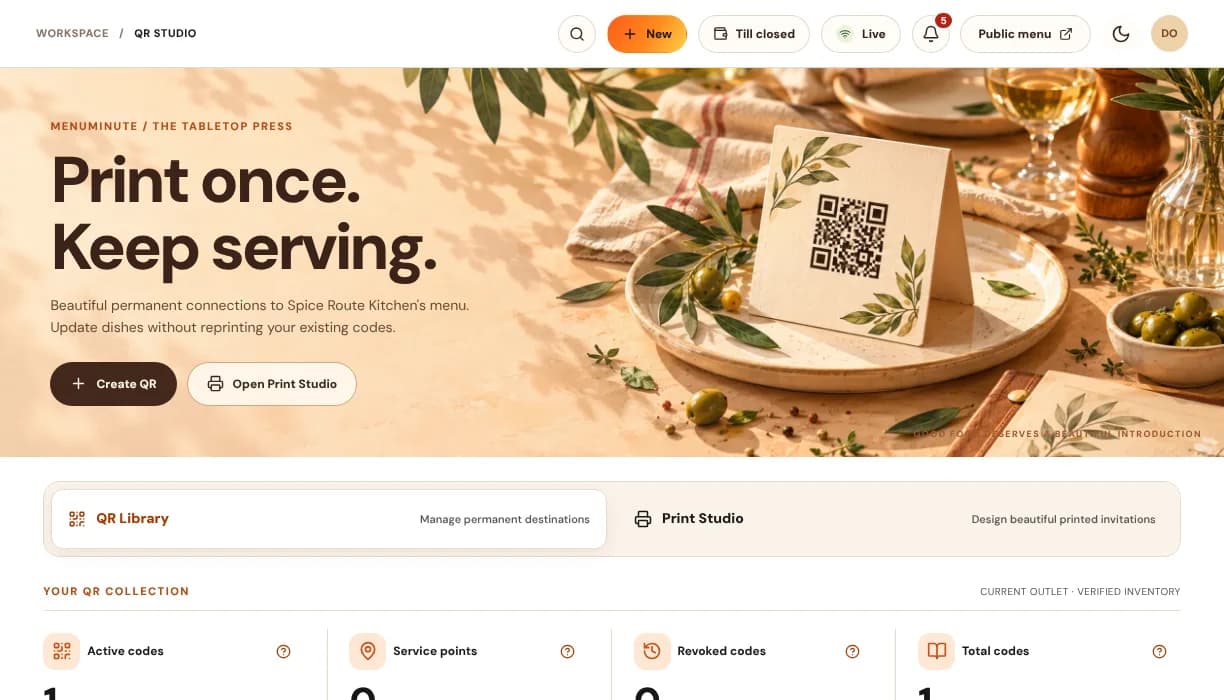
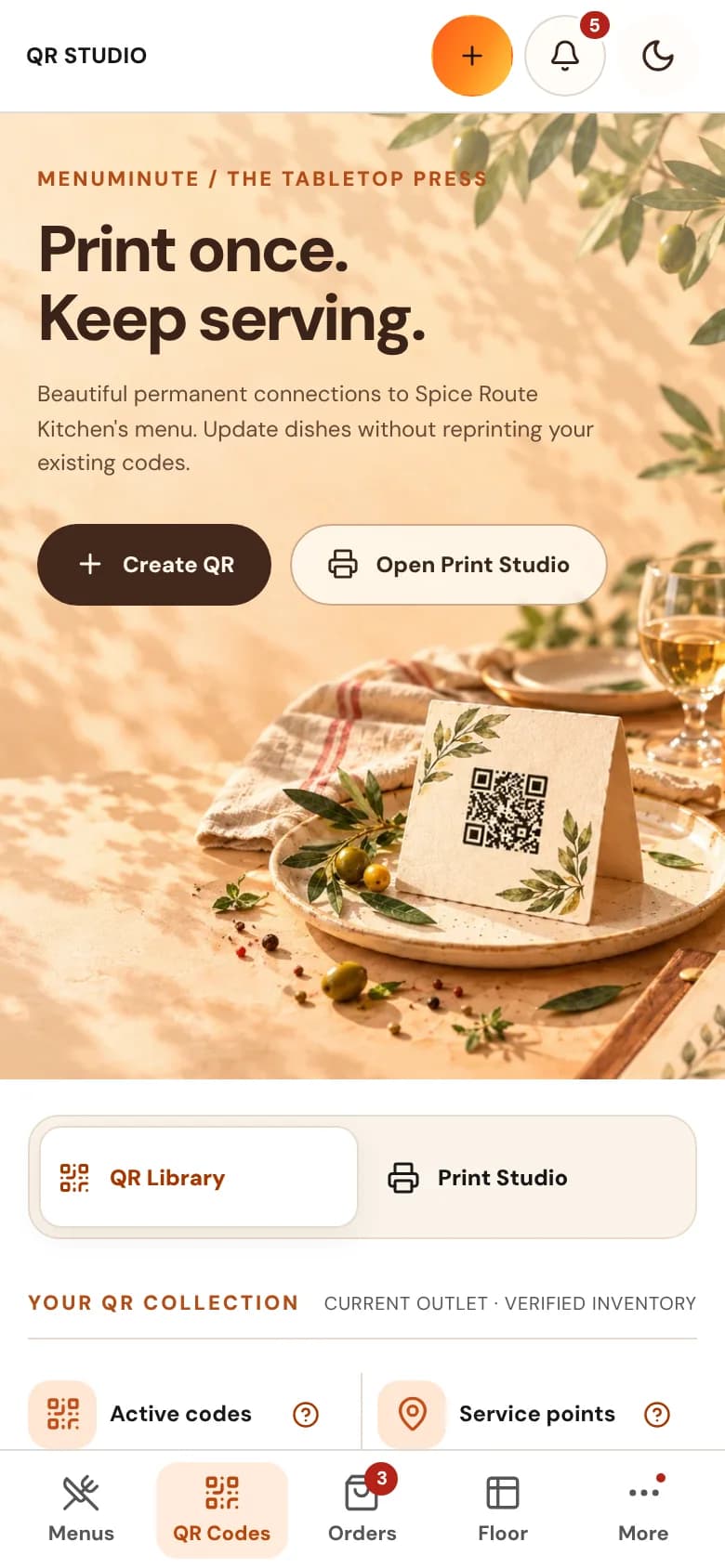
- •Click QR codes in the left menu. On a phone, tap QR Codes at the bottom.बाईं तरफ़ के मेन्यू में QR codes पर क्लिक कीजिए। फ़ोन में नीचे QR Codes पर टैप कीजिए।
- 1Click Create QR if you need a new code.नया कोड चाहिए तो Create QR पर क्लिक कीजिए।
- 2Click Open Print Studio to design printed cards.छपे हुए कार्ड डिज़ाइन करने के लिए Open Print Studio पर क्लिक कीजिए।
STEP 2 · चरण 2
Download or share your QRअपना QR डाउनलोड या शेयर कीजिए
Pick your code in the QR library. The buttons under the picture let you save or share it.QR library में अपना कोड चुनिए। तस्वीर के नीचे के बटन से उसे सेव या शेयर कीजिए।
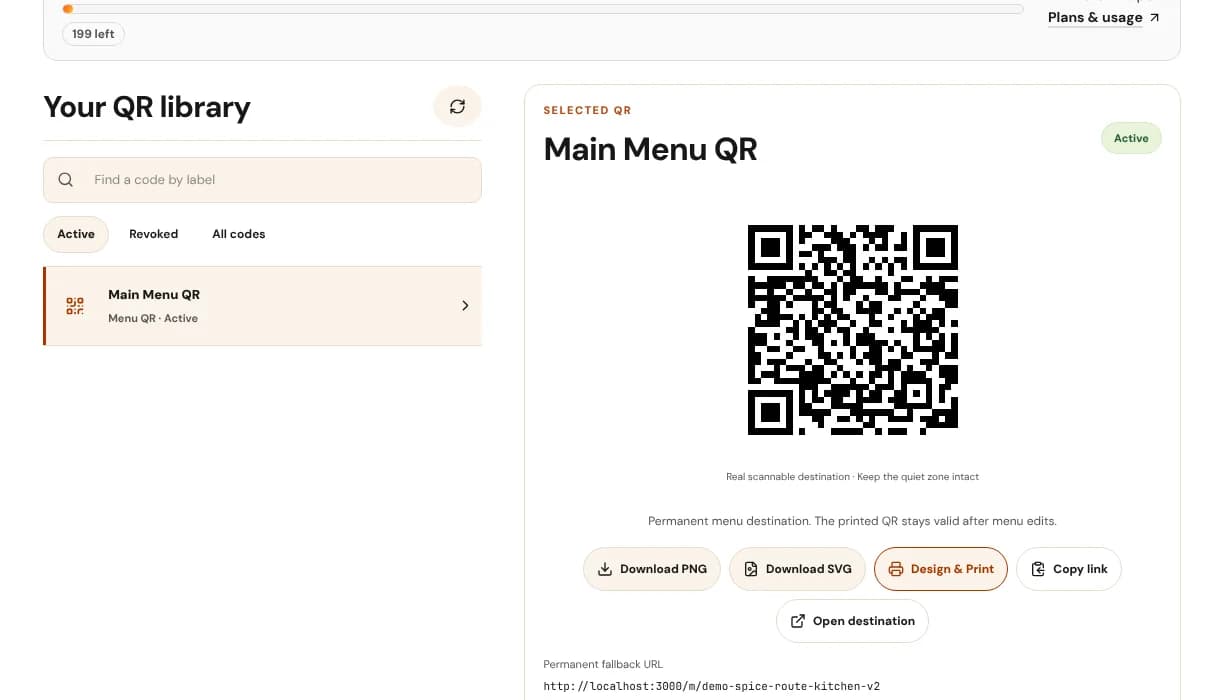
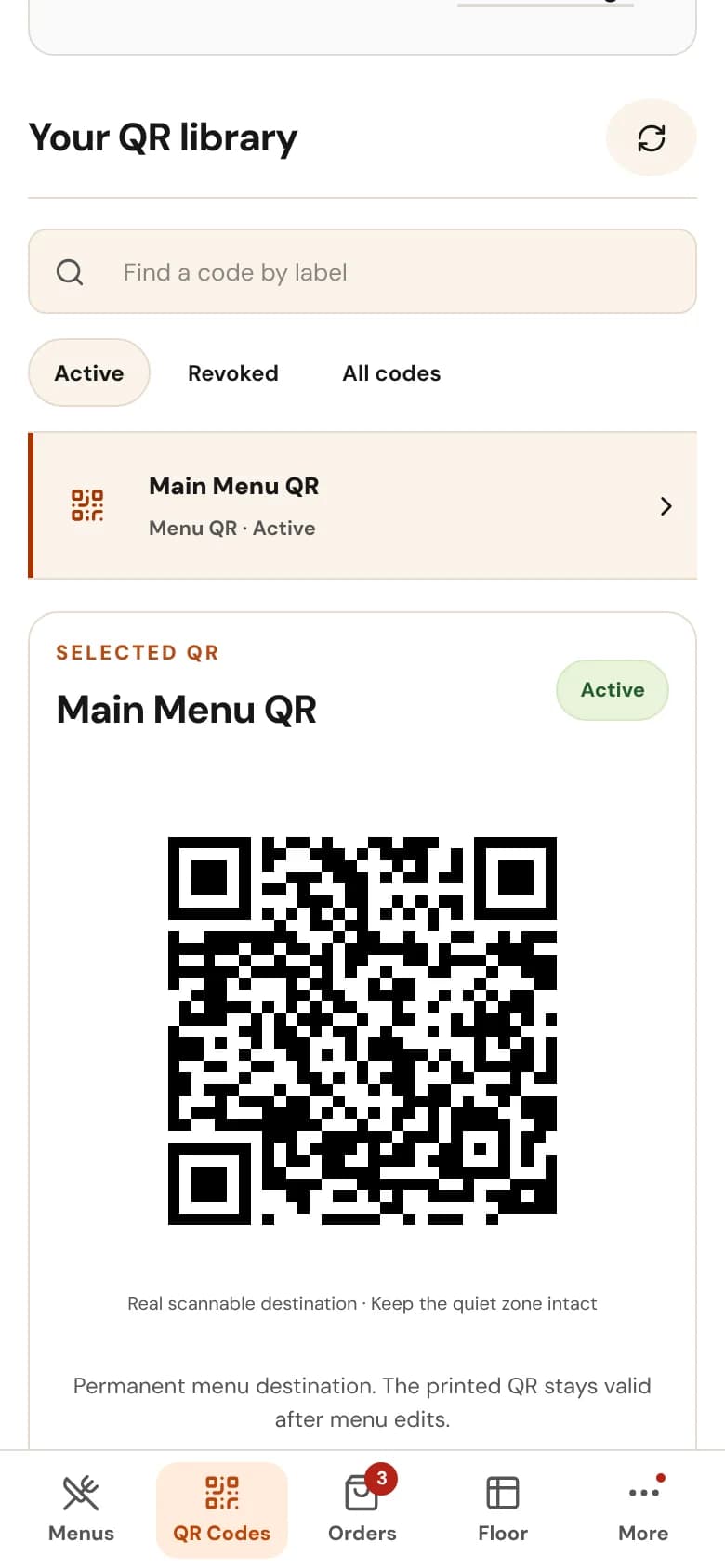
- 1Download PNG: a picture file. Good for WhatsApp and screens.Download PNG: तस्वीर वाली फ़ाइल। WhatsApp और स्क्रीन के लिए ठीक है।
- 2Download SVG: a sharp file for printers and big banners.Download SVG: प्रिंटर और बड़े बैनर के लिए साफ़ फ़ाइल।
- 3Copy link: share your menu link online.Copy link: अपने मेन्यू का लिंक ऑनलाइन शेयर कीजिए।
- 4Design & Print: make nice table cards (next step).Design & Print: सुंदर टेबल कार्ड बनाइए (अगला स्टेप)।
STEP 3 · चरण 3
Design and print table cardsटेबल कार्ड डिज़ाइन और प्रिंट कीजिए
Print Studio helps you turn your QR code into something guests like to pick up.Print Studio आपके QR कोड को ऐसा कार्ड बना देता है जिसे ग्राहक खुशी से उठाकर देखें।
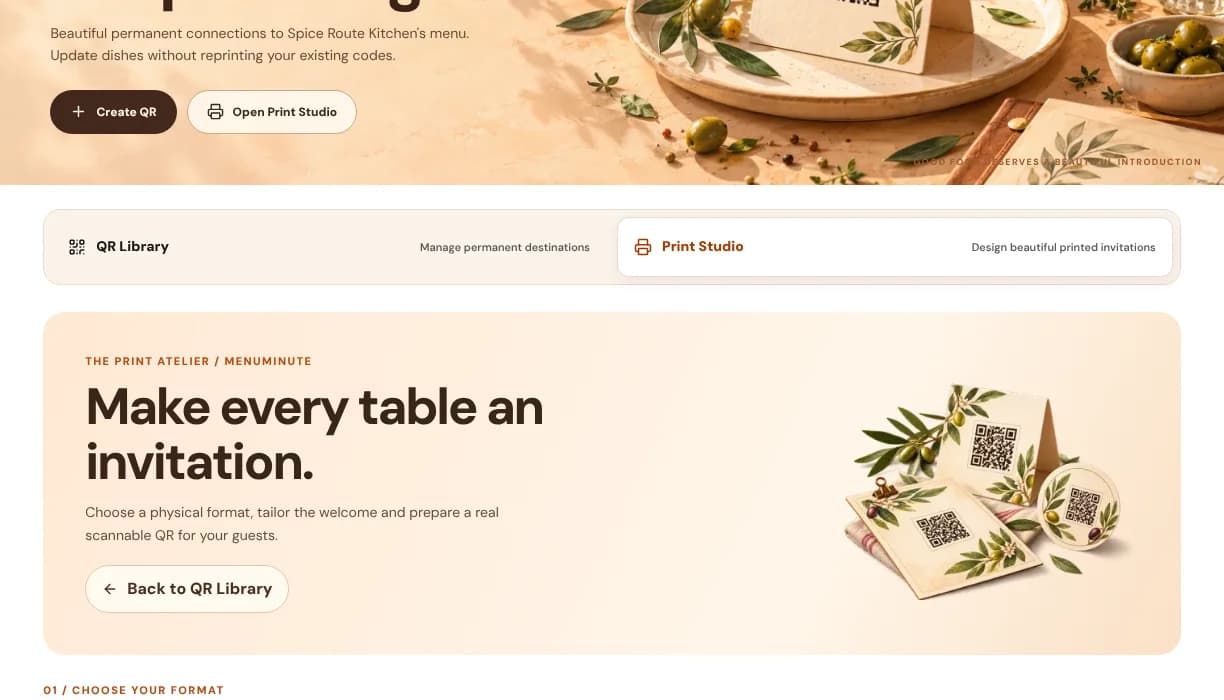
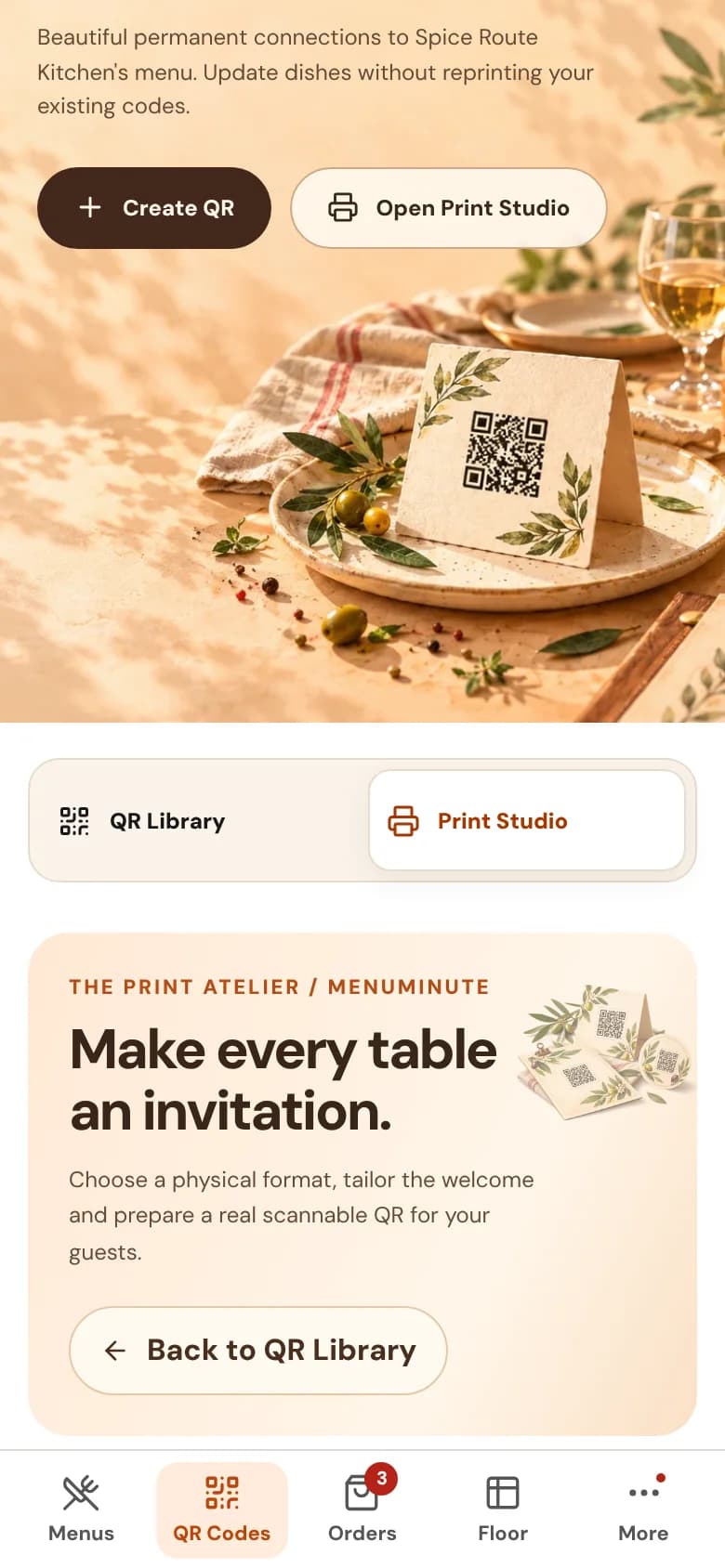
- 1Click the Print Studio tab at the top of the QR page.QR पेज पर ऊपर Print Studio टैब पर क्लिक कीजिए।
- •Choose a format: Table Stand, Window / Counter Sticker or Menu Insert.फ़ॉर्मेट चुनिए: Table Stand, Window / Counter Sticker या Menu Insert।
- •Pick your table numbers and a look you like, then export the print sheet and print it.अपने टेबल नंबर और पसंद का डिज़ाइन चुनिए, फिर प्रिंट शीट एक्सपोर्ट करके प्रिंट कीजिए।
STEP 4 · चरण 4
Test it before you print a lotज़्यादा प्रिंट करने से पहले जाँच लीजिए
Always scan your own code first. It takes one minute and saves you a lot of trouble.पहले अपना कोड ख़ुद स्कैन करके देखिए। एक मिनट लगता है और बाद की बहुत परेशानी बच जाती है।
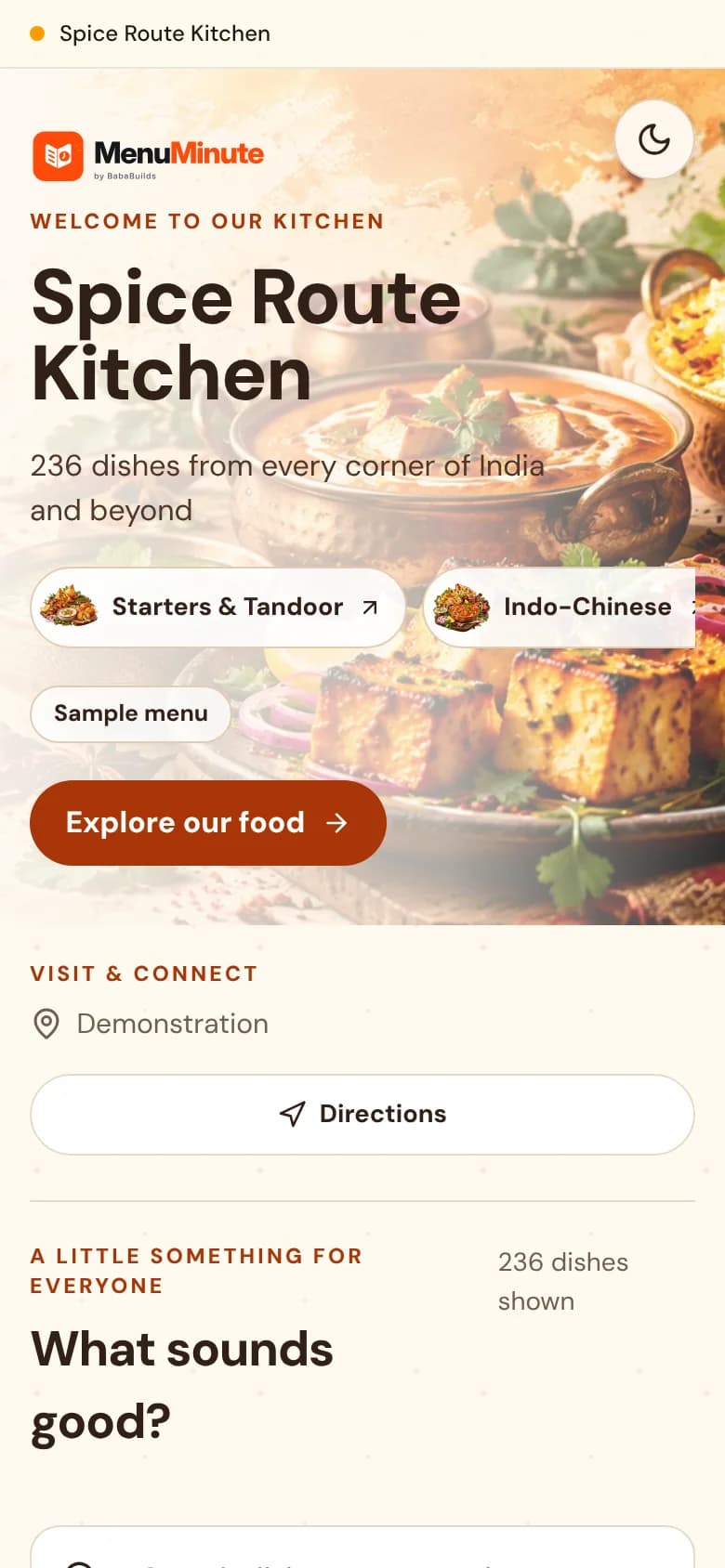
- •Open the camera on your phone and point it at the code.अपने फ़ोन का कैमरा खोलिए और कोड की तरफ़ रखिए।
- •Tap the link that appears. Your menu should open.जो लिंक दिखे उस पर टैप कीजिए। आपका मेन्यू खुलना चाहिए।
- •Check that your latest dishes and prices are there. Then print more cards.देखिए कि आपकी नई डिश और कीमतें दिख रही हैं। फिर और कार्ड प्रिंट कीजिए।
Before you move onआगे बढ़ने से पहले
- I found my Main Menu QRमुझे अपना Main Menu QR मिल गया
- I downloaded itमैंने उसे डाउनलोड कर लिया
- I scanned it with my own phoneमैंने अपने फ़ोन से उसे स्कैन करके देखा
If something looks wrongकुछ गड़बड़ लगे तो
- Do I need a new QR when my menu changes?मेन्यू बदलने पर क्या नया QR चाहिए?
- No. The same code opens your latest published menu. Just publish your changes.नहीं। वही कोड आपका नया पब्लिश किया हुआ मेन्यू खोलता है। बस बदलाव पब्लिश कर दीजिए।
- The code doesn't open my menu.कोड स्कैन करने पर मेन्यू नहीं खुलता।
- Check that Public menu status says Live on your Dashboard. Make sure the card is flat, clean and in good light.Dashboard पर Public menu status में Live है या नहीं, देखिए। कार्ड सीधा, साफ़ और अच्छी रोशनी में होना चाहिए।
- A printed card got damaged.छपा हुआ कार्ड ख़राब हो गया।
- Download the code again from the QR library and print a new card.QR library से कोड दोबारा डाउनलोड कीजिए और नया कार्ड प्रिंट कर लीजिए।