Service Counter, Guest Requests & Sold-Out Dishes
Review incoming orders, check requests from guests and keep dish availability current.

Quick Steps Summary
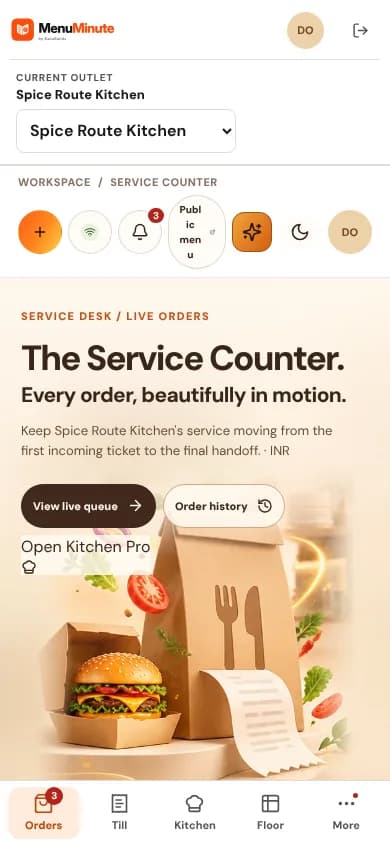
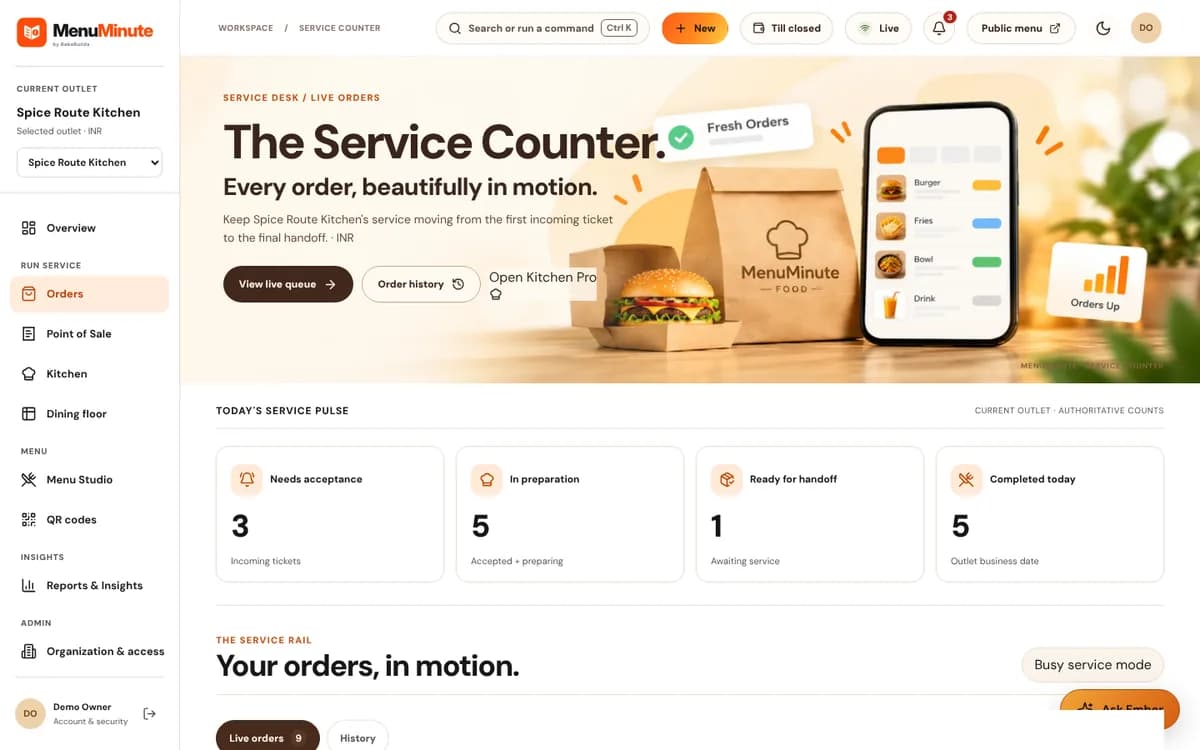
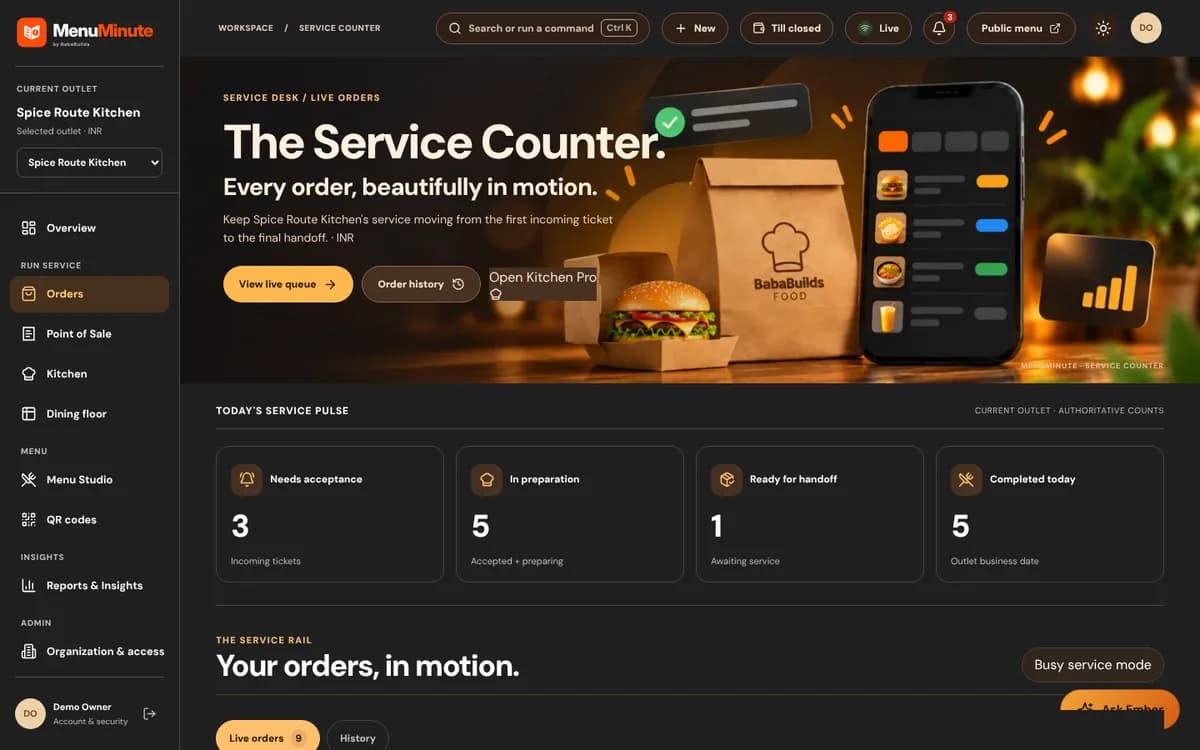
- 1Open Service Counter to review new orders.
- 2Accept an incoming order once your restaurant can prepare it.
- 3Check guest service requests in your restaurant overview.
- 4Open Dish Availability from your dashboard and choose a dish to mark sold out.
- 5Mark tickets 'Served' (dine-in) or 'Collected' (pickup) upon delivery.
1. Order Acceptance & Guest Assurance
In MenuMinute, order submission is not automatic acceptance. As a restaurant operator, you always maintain final authority over your kitchen's capacity.
When a diner submits an order, it arrives with a chime in your pending queue. Once you click 'Accept', the guest's phone updates with confirmation and estimated prep time.
2. Marking a Dish Sold Out
Ran out of fresh salmon or the daily soup special? Don't make servers apologize at tables after diners order.
On your restaurant dashboard, open Dish Availability and select the dish. Mark it sold out and wait for the confirmation before closing the panel. Guests opening or refreshing your live menu can then see the item is unavailable.
Morning Reset
Turn items back on just as easily the next morning when your fresh delivery arrives!
3. Service Requests & Waiter Calls
Guests scanning table QR codes can tap 'Call Waiter' or 'Request Bill' directly from their phones.
These notifications pop up prominently in your Service Requests panel with the table number, allowing floor staff to respond swiftly and delight customers.
Ready to put this guide into practice?
Jump into your MenuMinute dashboard and make changes directly.
Frequently Asked Questions
Can I reject an order if the kitchen is at full capacity?
Yes, you can reject an order with an optional polite note (such as 'Kitchen at maximum capacity; please try again in 15 minutes'). The guest is immediately notified on their phone.
Does accepting an order collect payment?
Accepting an order confirms kitchen preparation. Payment can be recorded separately at the table via cash, card, or your POS terminal.
Still have a question?
If this guide does not answer your question about Service Counter, Guest Requests & Sold-Out Dishes, browse the common questions or ask a member of your restaurant team for help.
Related Restaurant Guides
Kitchen Pro: Managing Kitchen Orders
Kitchen Pro shows incoming kitchen work for each assigned station. Staff complete their own tasks, and an authorized person does the Final Check and releases the whole order when all stations finish.
Dining Floor: Tables, Chairs & Seating
The Dining Floor shows every table with its chairs. Add a table, name and number it, give it chairs, and your seating capacity is counted automatically. Hosts tap a chair or table to mark guests seated or free.
Point of Sale (POS) & Payment Recording
Use Point of Sale to record orders and optionally note a payment received by staff. These records do not themselves capture card payments or prove bank settlement.