Kitchen Pro: Managing Kitchen Orders
Streamline your kitchen ticket workflow, reduce wait times, and eliminate messy paper order slips.
Quick Steps Summary
- 1Open `/kitchen` on any kitchen tablet, monitor, or screen.
- 2Select your kitchen station (e.g., Grill, Fryer, Salad & Cold, Bar, or All).
- 3Watch new orders arrive with an audible chime and clean ticket cards.
- 4Check item modifiers, special guest notes, and real-time elapsed prep timers.
- 5Start preparation for your station, then mark its tasks complete. Final Check & Order Release lets you release each dish as it finishes; the order is Ready with its last dish.
1. Station Routing & Kitchen Layout
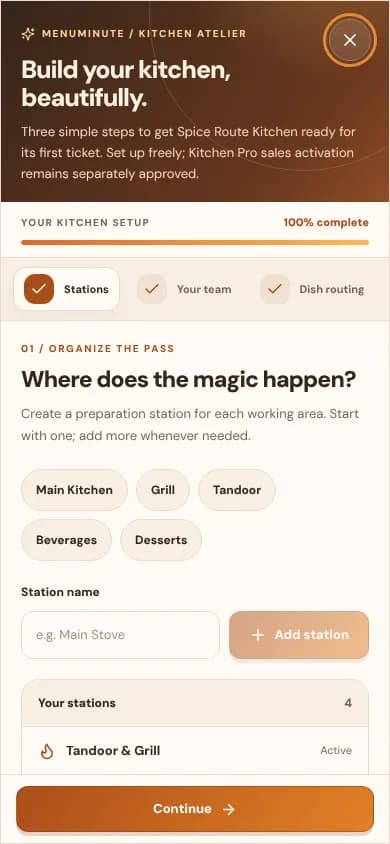
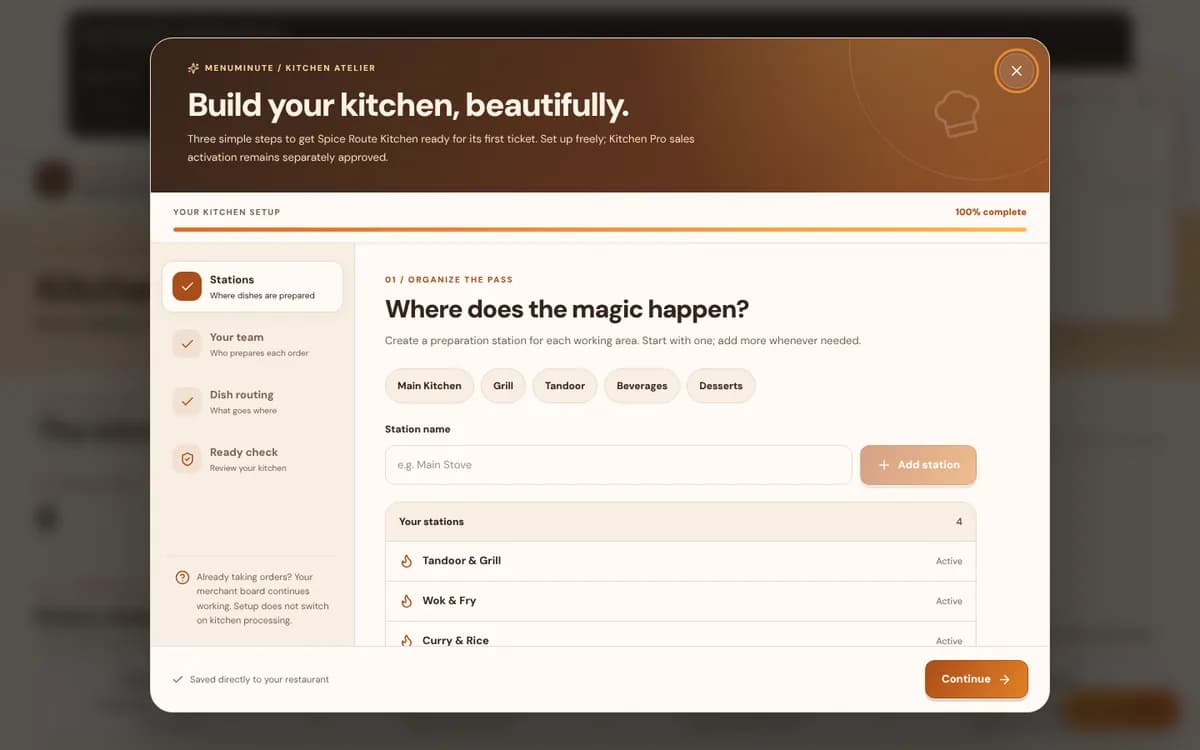
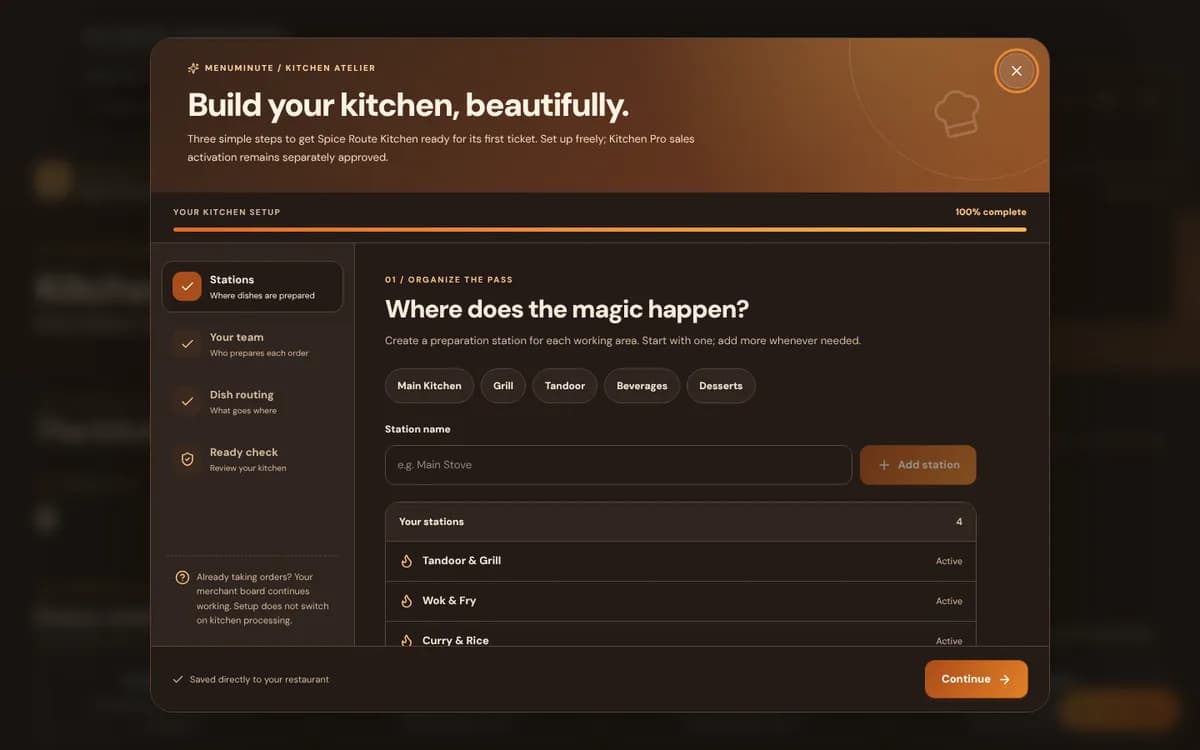
In a busy restaurant, the grill chef does not need to see beverage orders, and the bartender does not need to see steaks. Kitchen Pro allows you to filter display screens by station:
Hot Kitchen / Grill: Steaks, burgers, pizzas, hot entrees.
Cold Station / Pantry: Fresh salads, raw bar, appetizers, desserts.
Bar / Beverage: Cocktails, draft beer, wines, coffee, cold beverages.
Final Check & Order Release: Shows the complete order across all stations so the kitchen pass coordinator can assemble final plates together.
Protecting Kitchen Tablets
Mount kitchen tablets at eye level using sturdy silicone wall mounts. This keeps screens free from heat, steam, and spills during dinner rushes.
2. Color-Coded Timers & Ticket Stages
Every ticket displays an active elapsed timer so your kitchen line knows exactly how long diners have been waiting:
Green (< 10 minutes): Fresh ticket, normal prep window.
Amber (10–20 minutes): Approaching target prep threshold.
Red (> 20 minutes): Priority order needing immediate line attention.
Each station marks its own work complete. As each dish finishes, an authorized person checks it (Final Check) and releases it, one dish at a time or together. The order becomes Ready when its last dish is released, and guests see “Part ready” until then.
Ready to put this guide into practice?
Jump into your MenuMinute dashboard and make changes directly.
Frequently Asked Questions
Can staff at different kitchen stations work on an order at the same time?
Yes! Kitchen Pro synchronizes across all screens in real time. If the grill chef finishes their burger and bumps it, the Final Check screen updates immediately.
Does Kitchen Pro work on affordable Android tablets?
Absolutely. Kitchen Pro runs in any web browser and is fully optimized for standard 10-inch Android tablets, iPads, and commercial touch monitors.
Still have a question?
If this guide does not answer your question about Kitchen Pro: Managing Kitchen Orders, browse the common questions or ask a member of your restaurant team for help.
Related Restaurant Guides
Service Counter, Guest Requests & Sold-Out Dishes
Use Service Counter to review and accept incoming orders. Use Dish Availability on your restaurant dashboard to mark an item sold out or restore it.
Dining Floor: Tables, Chairs & Seating
The Dining Floor shows every table with its chairs. Add a table, name and number it, give it chairs, and your seating capacity is counted automatically. Hosts tap a chair or table to mark guests seated or free.
Reports, Analytics & Daily Shift Summaries
Transform your dining data into smarter business decisions. See your top-selling items, compare lunch vs dinner order volumes, celebrate daily milestones, and export reports for your accountant.