Dining Floor: Tables, Chairs & Seating
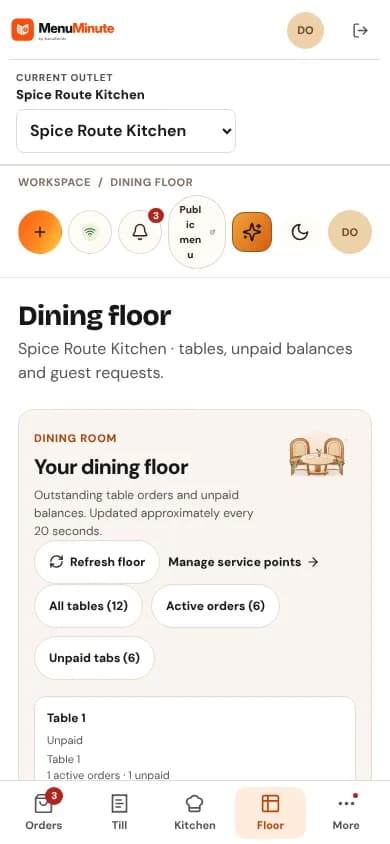
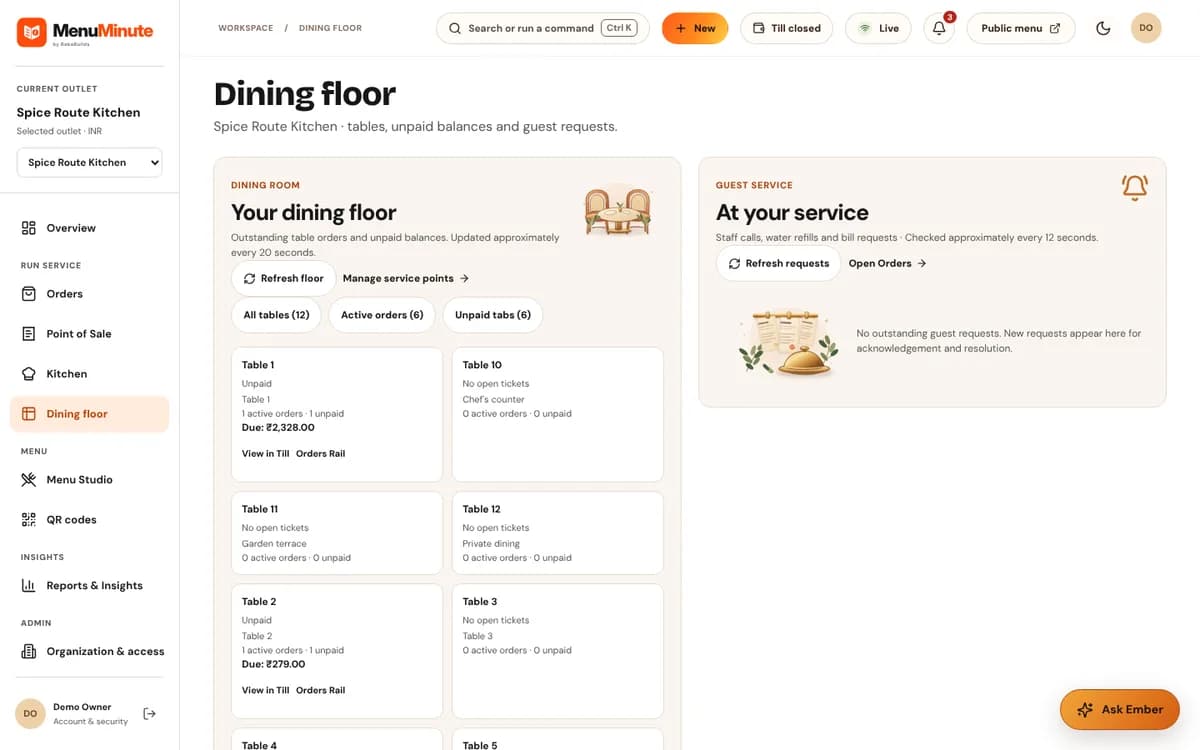
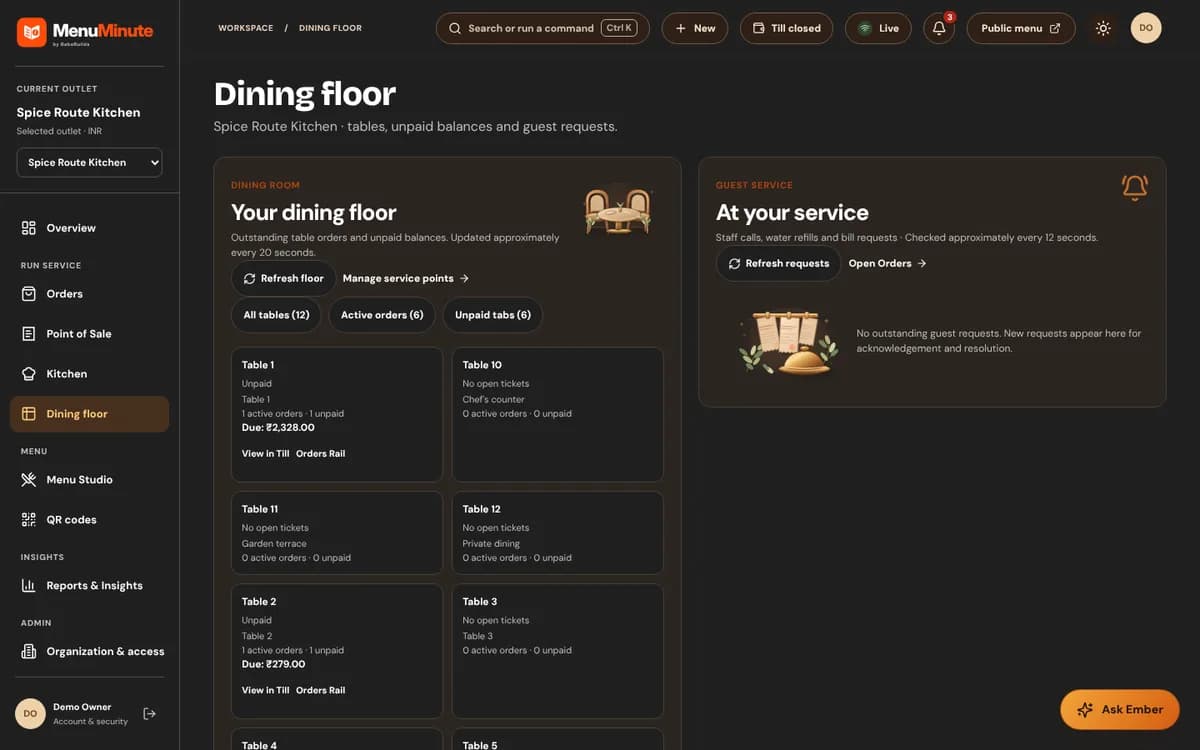
Build your dining room with real tables and chairs, then tap to show who is seated right now.
Quick Steps Summary
- 1Open 'Dining Floor' from the dashboard navigation.
- 2Choose 'Add table', give it a name and number, pick a section and shape, and set how many chairs it has.
- 3Use 'Add chair' to add more chairs, or to create spare chairs and assign them to a table later.
- 4When guests arrive, tap a chair to mark it taken, or choose 'Seat party' to fill the next free chairs.
- 5When they leave, tap the chair again or choose 'Clear table'.
1. Tables and chairs
Every table has a name, a number guests and staff see, and a permanent system ID that never changes if you rename or renumber it.
Chairs are real records. A table's capacity is the number of chairs assigned to it, and Maximum occupancy is the total across all tables.
Sections are the areas of your restaurant, like Main Dining, Patio or Rooftop. Put each table in a section to find it faster and to see how busy each area is.
Host Stand Efficiency
Keep the floor open at the host stand. One tap per party keeps the free-seat count honest, so you can quote waits with confidence.
2. Marking guests seated
Occupancy is set by your team, not guessed from orders. Open orders and bookings are shown as hints on the table card, but they never change a chair.
If a table has been occupied for several hours with no open order, the card asks 'Still occupied?' so you can clear it in one tap.
Ready to put this guide into practice?
Jump into your MenuMinute dashboard and make changes directly.
Frequently Asked Questions
Can I rename or renumber a table later?
Yes. Open the table's menu and choose Edit table. The system ID stays the same, so QR codes and past orders keep pointing at the right table.
Why can't I archive a table?
A table with open orders, upcoming bookings, a live QR code or seated guests can't be archived. Resolve those first. Archived tables release their chairs so you can reuse them.
Still have a question?
If this guide does not answer your question about Dining Floor: Tables, Chairs & Seating, browse the common questions or ask a member of your restaurant team for help.
Related Restaurant Guides
QR Studio & Tabletop Press: Printing Permanent QR Codes
MenuMinute's QR Studio lets you create table-specific or whole-restaurant QR codes. Customize colors, add your restaurant name, and download print-ready sheets for table tents, stickers, or acrylic standees.
Service Counter, Guest Requests & Sold-Out Dishes
Use Service Counter to review and accept incoming orders. Use Dish Availability on your restaurant dashboard to mark an item sold out or restore it.
Point of Sale (POS) & Payment Recording
Use Point of Sale to record orders and optionally note a payment received by staff. These records do not themselves capture card payments or prove bank settlement.