QR Studio & Tabletop Press: Printing Permanent QR Codes
Generate beautiful, branded tabletop QR codes and stickers that never expire or need re-printing.
Quick Steps Summary
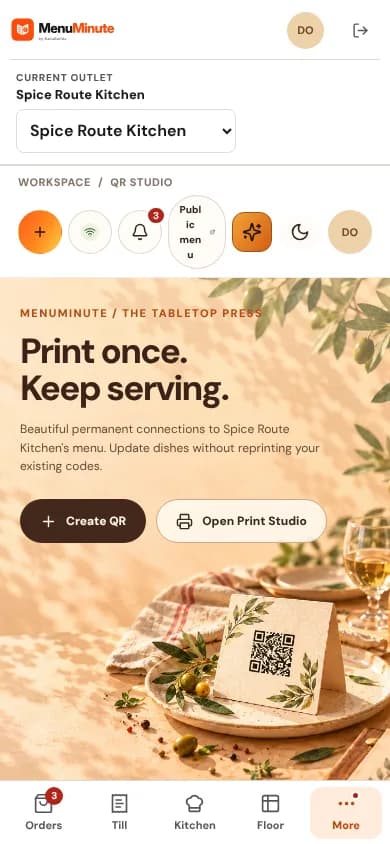
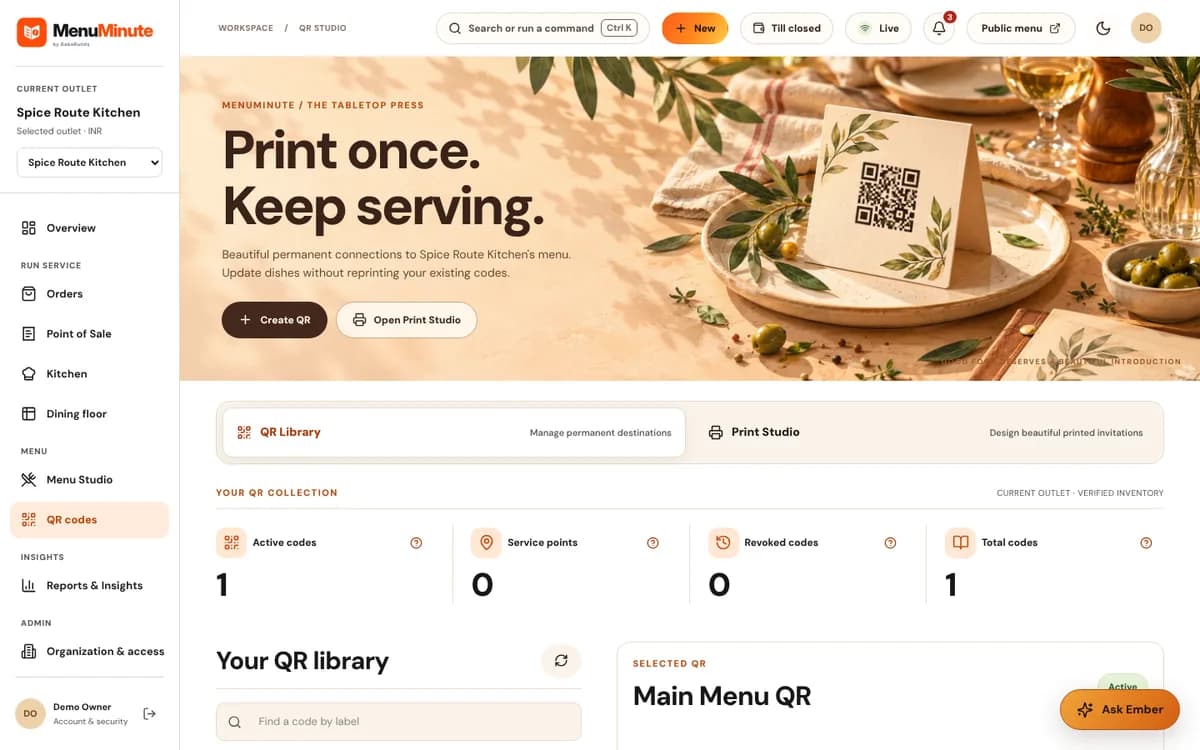
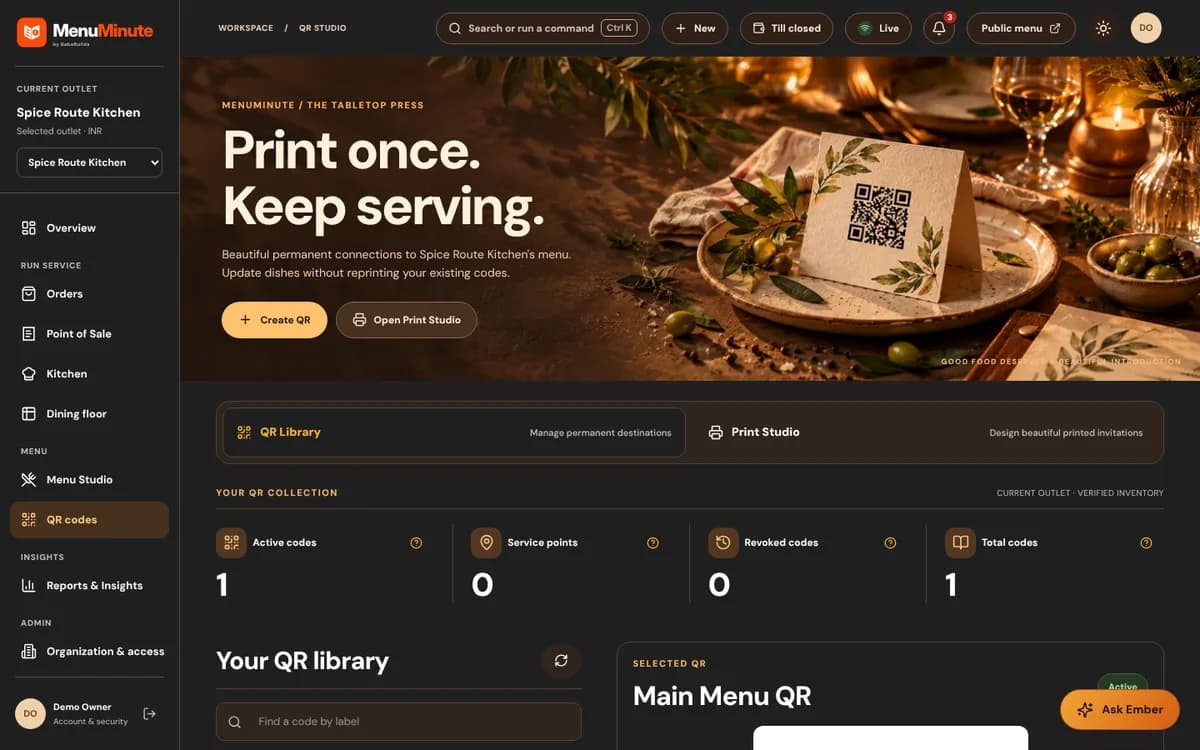
- 1Open 'QR Codes' from your dashboard sidebar.
- 2Select your QR type: Table-Specific (e.g. Table 1, Table 2) or General Entrance.
- 3Choose a print design, QR color and typography using the available QR Studio controls.
- 4Preview the standee layout on screen.
- 5Click 'Download Print Sheet' (PDF or high-res PNG) and print for your tables.
1. Why MenuMinute QR Codes are Permanent
A MenuMinute QR points to a saved menu connection, rather than a fixed list of dishes. Updating the menu does not change the QR while that connection remains active.
Menu changes do not require a new QR print while the same QR destination remains active. Replacing or deleting a table QR may require a new print.
2. Table-Specific vs General Entrance QR Codes
Table-Specific QRs (Recommended for Dine-in): When a diner scans 'Table 4', the menu automatically knows their table number. When they place an order or request assistance, your kitchen and waitstaff see 'Table 4' immediately.
General QRs (Ideal for Entrance & Counter Pickup): Perfect for window displays, bar counters, or takeout counters where guests pick up orders themselves.
Choose Table Range
Enter your starting and ending table numbers (e.g. Tables 1 to 25).
QR Studio > Table NumbersSelect Theme & Typography
Choose a design that complements your dining room aesthetic.
Export Print Sheet
Preview your print layout and choose an available export format before printing.
Matte Lamination Tip
Apply a matte lamination coating to your table stickers. Matte surfaces prevent annoying glare under bright restaurant lighting, making camera scanning instantaneous.
Ready to put this guide into practice?
Jump into your MenuMinute dashboard and make changes directly.
Frequently Asked Questions
What size should I print the QR stickers?
For dining tables, a square sticker between 6 cm x 6 cm (2.5 inches) and 9 cm x 9 cm (3.5 inches) is ideal. Diners can comfortably scan it from their seats without standing up.
What if a customer accidentally spills liquid on the sticker?
If you use waterproof synthetic vinyl stickers or acrylic table tents, spills wipe right off! Even if slightly scratched, high error-correction QR codes remain fully readable.
Still have a question?
If this guide does not answer your question about QR Studio & Tabletop Press: Printing Permanent QR Codes, browse the common questions or ask a member of your restaurant team for help.
Related Restaurant Guides
Getting Started with MenuMinute in 5 Minutes
Welcome to MenuMinute! Setting up your dining room takes just five minutes. You do not need any special technical knowledge—just your restaurant name, your logo, and your love for great food.
Menu Studio: Crafting & Publishing Digital Menus
Menu Studio gives you total creative control over your dishes. Organize your items into categories, add mouthwatering photos, configure add-ons, and publish updates instantly without ever re-printing paper menus.
Dining Floor: Tables, Chairs & Seating
The Dining Floor shows every table with its chairs. Add a table, name and number it, give it chairs, and your seating capacity is counted automatically. Hosts tap a chair or table to mark guests seated or free.