Menu Studio: Crafting & Publishing Digital Menus
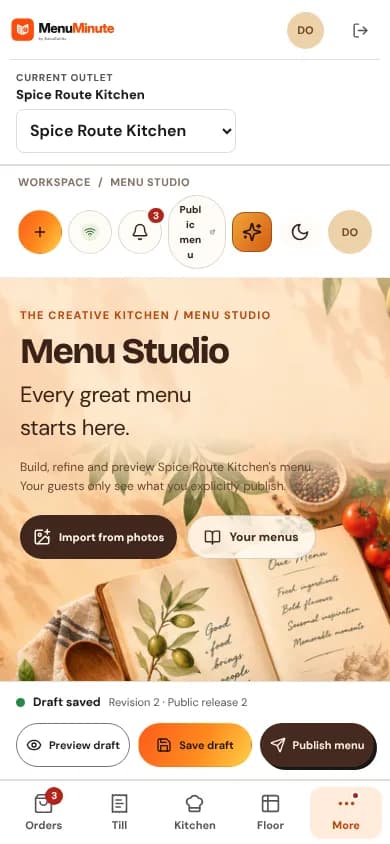
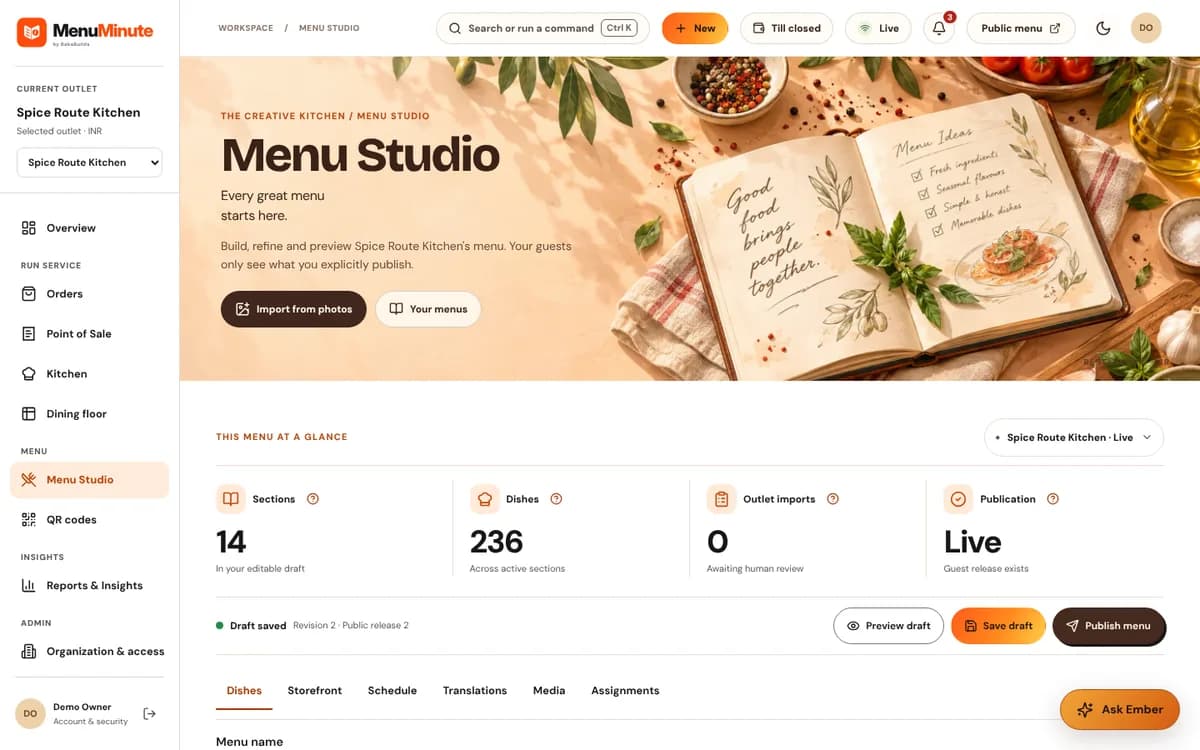
Design mouthwatering digital menus with categories, modifiers, dietary badges, and one-click publishing.
Quick Steps Summary
- 1Click '+ New Category' (e.g., Starters, Wood-Fired Pizzas, Signature Drinks, Desserts).
- 2Click '+ Add Dish' inside any category and write an inviting, sensory description.
- 3Add variations (e.g., Regular, Large) and optional add-ons (e.g., Extra Truffle Glaze).
- 4Tag dietary highlights (Vegetarian, Vegan, Halal, Gluten-Free) and flag common allergens.
- 5Review your changes in the Live Preview and hit 'Publish Menu'.
1. Organizing Categories & Dishes
Great menus are effortless for hungry guests to navigate. Group your dishes into logical categories such as 'Appetizers', 'Wood-Fired Pizzas', 'Signature Drinks', or 'Chef Specials'.
You can drag and reorder categories and dishes to arrange them in the exact order you want diners to explore them on their phones.
Create Categories
Click '+ New Category' at the top of Menu Studio and give it a clear, appetizing name.
Menu Studio > + New CategoryAdd Dish Details
Enter the dish title, an inviting description of fresh ingredients, and the price.
Upload Food Photos
Attach a delicious photo. Dishes with vibrant photography consistently see higher customer orders!
Sensory Descriptions Sell
Highlight textures and cooking techniques like 'slow-braised', 'crisp wood-fired crust', or 'hand-whipped ricotta'.
2. Variations, Modifiers & Add-ons
Give your diners the freedom to customize their meals without burdening your servers with messy handwritten notes.
Required Choices (Variations): Use these when a customer must choose one option (e.g. Portion Size: Small / Medium / Large, or Pasta Type: Penne / Spaghetti / Rigatoni).
Optional Extras (Add-ons): Use these for delicious extras that increase your average order value (e.g. Extra Avocado +$2.50, Add Truffle Butter +$3.00, House Hot Sauce on the side).
3. Dietary Badges & Allergen Safety
Customers with dietary requirements love digital menus! You can highlight items with clean, verified badges: Vegetarian, Vegan, Halal, Gluten-Free, and Dairy-Free.
You can also flag common allergens (such as Peanuts, Tree Nuts, Shellfish, Soy, or Eggs) so guests can dine with total confidence.
Kitchen Safety Priority
Never guess allergen flags. Always verify ingredients with your head chef before tagging a dish allergen-free.
4. The Safety of Draft vs Published Menus
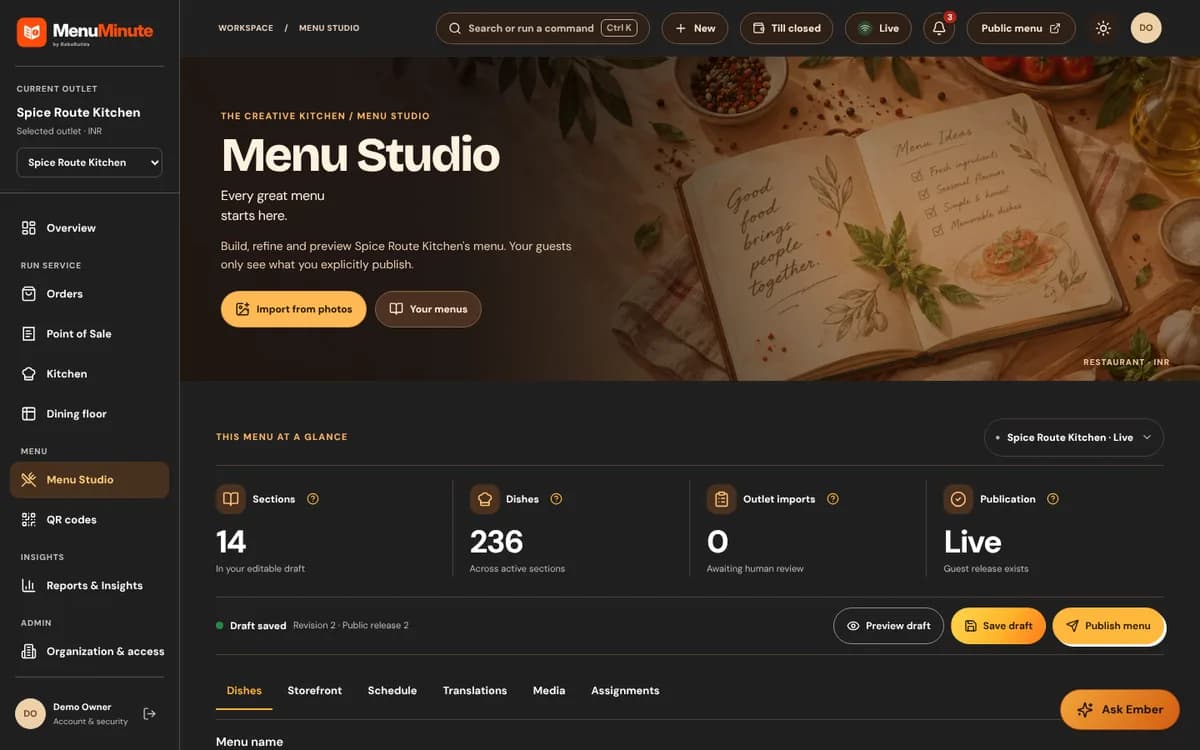
In MenuMinute, your edits are saved as a private Draft first. Think of this as your private chef notebook: you can tweak prices, prepare seasonal dishes, or adjust descriptions during service without altering what active diners see on their phones.
When you are ready, simply click 'Publish Changes'. Guests opening or refreshing your menu will see the published changes when their connection is available.
Ready to put this guide into practice?
Jump into your MenuMinute dashboard and make changes directly.
Frequently Asked Questions
If I change a price or add a dish, do I have to re-print my QR codes?
Usually not. A QR for an active menu connection continues to work after menu updates; allow for normal network and browser refresh times.
Can I temporarily hide a dish that is out of ingredients?
Open Dish Availability from your restaurant dashboard, then select the item you need to mark sold out. You can restore it when it is available again.
Still have a question?
If this guide does not answer your question about Menu Studio: Crafting & Publishing Digital Menus, browse the common questions or ask a member of your restaurant team for help.
Related Restaurant Guides
AI Menu Import: Turn Paper Menus into Digital Catalogs
Save hours of typing! Upload clear pictures of your existing printed menu or a PDF design file. MenuMinute's intelligent scanner reads your categories, dishes, descriptions, and prices into a draft for you to review and approve.
QR Studio & Tabletop Press: Printing Permanent QR Codes
MenuMinute's QR Studio lets you create table-specific or whole-restaurant QR codes. Customize colors, add your restaurant name, and download print-ready sheets for table tents, stickers, or acrylic standees.
Service Counter, Guest Requests & Sold-Out Dishes
Use Service Counter to review and accept incoming orders. Use Dish Availability on your restaurant dashboard to mark an item sold out or restore it.