Browsing Dishes, Categories & Allergen Filters
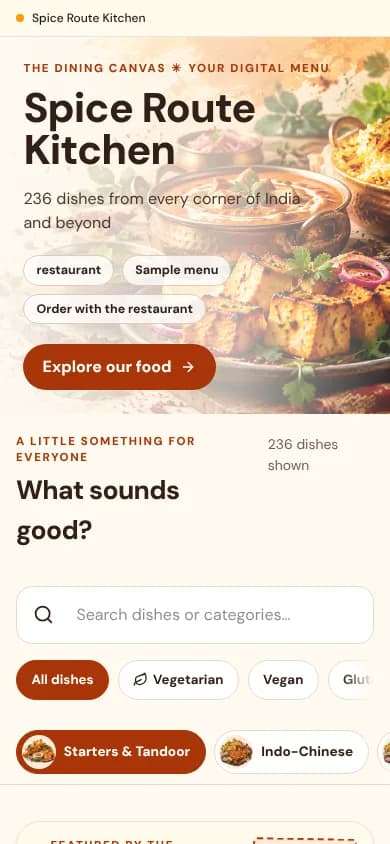
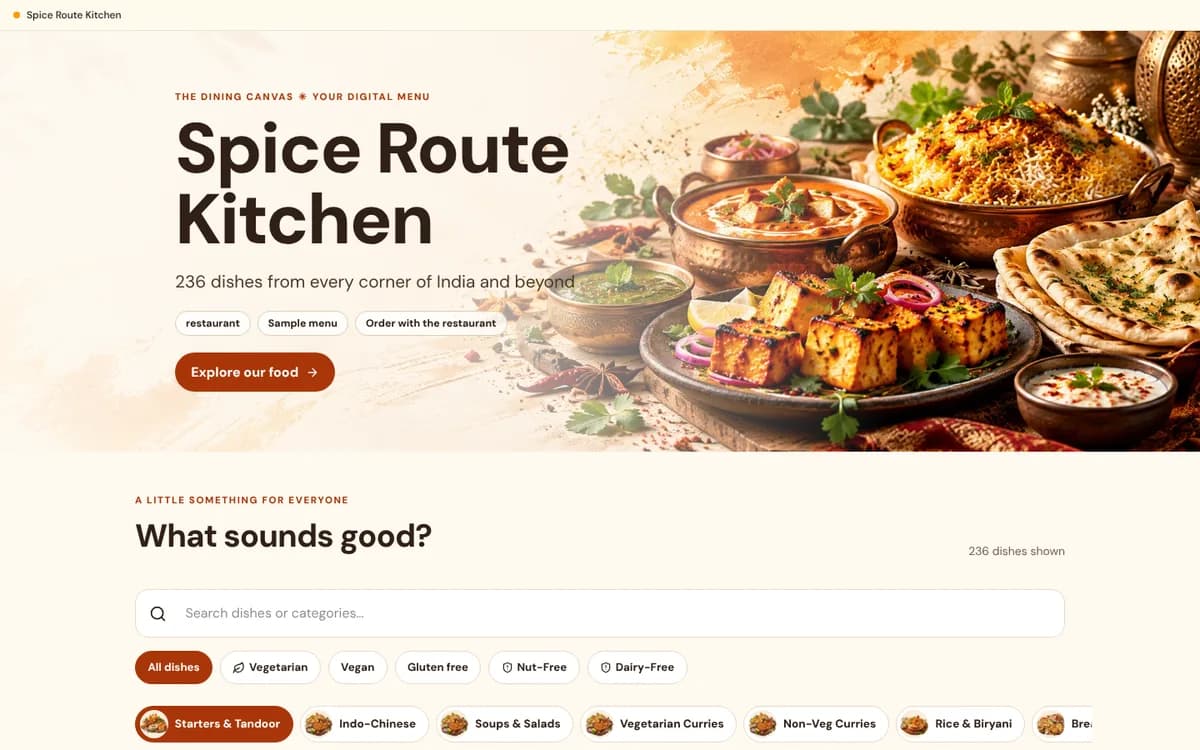
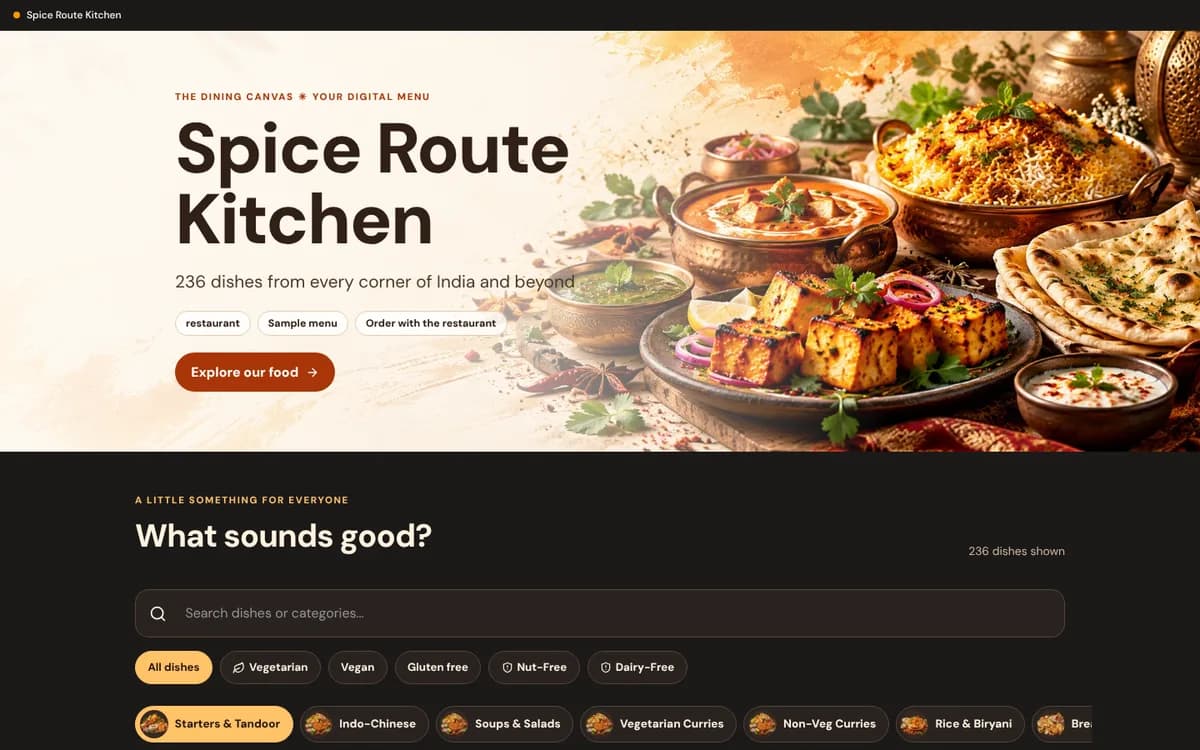
Find your favorite cravings in seconds with sticky category pills, instant search, and dietary tags.

Quick Steps Summary
- 1Scroll horizontally across the top category pill bar (e.g. Starters, Mains, Desserts).
- 2Tap any category to smoothly glide directly to that section.
- 3Use the Search Bar to quickly find ingredients like 'truffle', 'avocado', or 'matcha'.
- 4Tap the Dietary Filter pills (Vegetarian, Vegan, Halal, Gluten-Free) to filter matching dishes.
- 5Tap any dish card to view appetizing high-res photos and full ingredient descriptions.
1. The Sticky Category Bar
At the top of the menu, you will see category pills. As you scroll through the dishes, the bar stays pinned to the top of your screen so you can jump between Starters, Drinks, and Desserts whenever you want without endless scrolling.
2. Finding Dishes with Dietary Tags & Allergen Warnings
Eating with allergies or personal dietary choices is stress-free on MenuMinute:
Vegetarian (V) & Vegan (VG): Fresh plant-based dishes.
Gluten-Free (GF): Suitable for gluten-sensitive diners.
Halal: Prepared in accordance with halal standards.
Allergen warnings: If a restaurant has flagged common allergens (nuts, shellfish, dairy, eggs), these are prominently highlighted on the dish detail sheet.
Severe Allergies
If you have a severe food allergy, always inform your server in person in addition to reviewing the digital menu.
Frequently Asked Questions
Can I view the menu in a different language?
If the restaurant has enabled translations, a language switcher appears at the top corner of the menu so you can view dish names and descriptions in your preferred language.
Still have a question?
If this guide does not answer your question about Browsing Dishes, Categories & Allergen Filters, browse the common questions or ask a member of your restaurant team for help.
More Diner Guides
How to Scan & Open the Digital Menu in Seconds
Browsing a restaurant menu on your phone is effortless with MenuMinute. Simply open your phone's camera, point it at the table QR code, and tap the link that appears. You will instantly see today's fresh dishes, photos, and prices.
Customizing Dishes, Portion Sizes & Modifiers
Craving extra parmesan, less ice in your beverage, or a specific spice level? Tapping a dish opens the customization sheet where you can tailor your meal before adding it to your order.
Placing Your Order: Dine-In & Scheduled Pickup
Once you have selected your dishes, placing your order takes just one tap. Review your order in the cart drawer, verify your table number, and send your ticket straight to the kitchen.